
One Photo Christmas Card Before And After Results
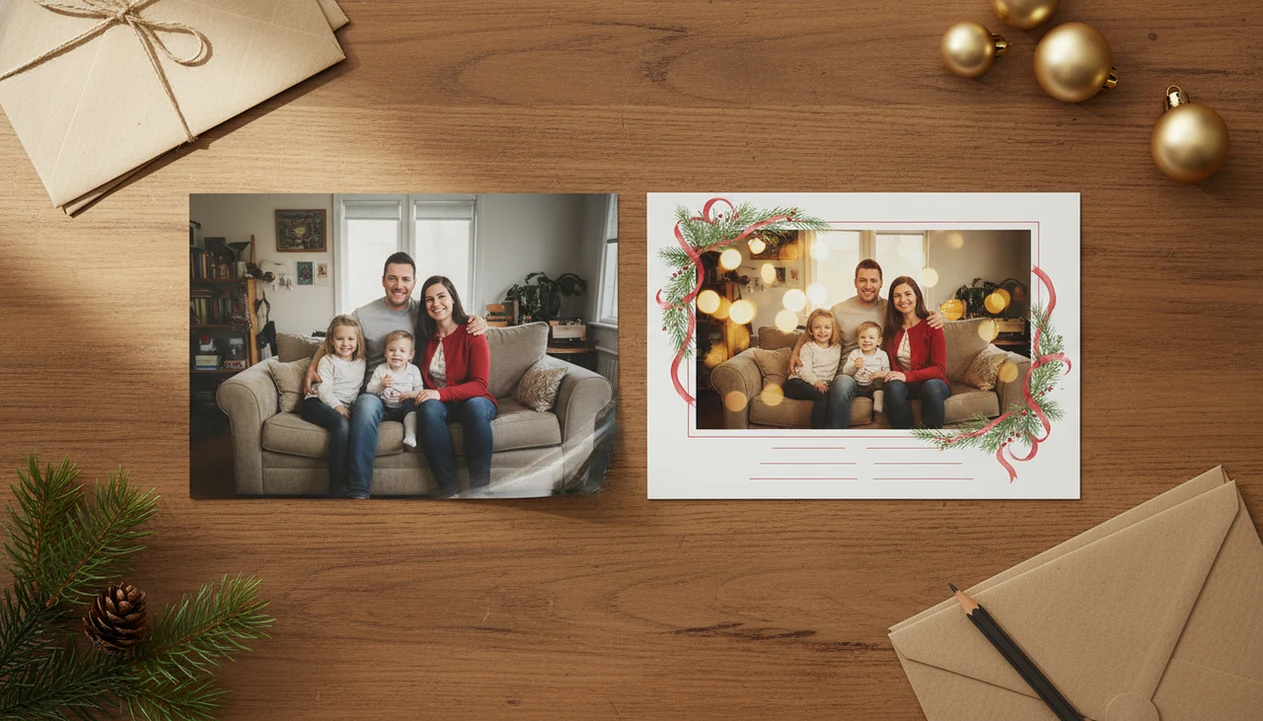
A one photo Christmas card before and after shows how a single everyday phone picture can become a polished printable or digital holiday greeting with better cropping, lighting, color, text, and festive styling. The most believable results start with a clear, well-lit original photo and use edits that still look like your real family.
> A one-photo Christmas card app can turn a single family, couple, pet, or business photo into a printable holiday greeting when the source image is sharp enough and the layout leaves safe room for text.
- One strong phone photo can become a finished Christmas card if faces are sharp, lighting is usable, and there is enough space for cropping and text.
- The most realistic AI Christmas card before after results improve exposure, background clutter, layout, and color without making people look artificial.
- Before printing, always check faces, hands, pets, text placement, and crop lines because small AI or layout errors become more obvious on paper.
At-a-glance one photo Christmas card before and after results
A one photo Christmas card before and after usually starts as a casual phone photo and ends as a cropped, color-corrected card with a readable holiday greeting. The “before” may have yellow living-room light, a toy pile in the corner, or no room for text.
The “after” should look finished, not fake. Common changes include a tighter crop, warmer but cleaner color, softened background clutter, festive accents, and simple type placed where it does not cover faces.
Subtle wins here.
About 85% of U.S. adults own a smartphone, according to Pew Research Center’s mobile fact sheet source. Pew has also reported that 82% of parents take photos or videos of their children at least a few times a week. That is why the normal starting point is not a studio image. It is the phone photo you already have.
One-photo Christmas card transformation workflow
A one-photo Christmas card transformation works by reading the main subject, improving the image, fitting it into a card layout, and placing greeting text around the safest empty space. AI tools may use subject detection and image embeddings, which simply means the software identifies people, pets, background, and visual style.
The usual sequence is straightforward: upload the image, detect faces or main subjects, suggest a crop, enhance brightness and sharpness, fit the photo into a single-photo template, then add text. Some tools also warm the color, blur the background, or add seasonal styling such as snow, lights, borders, or a matching scarf.
The source photo still sets the ceiling. A toddler looking away can still be charming, but motion blur, tiny screenshots, and harsh flash are hard to rescue. Good Christmas card maker and holiday greeting guides that help families turn phone photos into printable cards, digital greetings, and festive portraits using ai styles deliver practical photo-to-card decisions, not a promise that every bad image becomes print-ready.
6 steps to make a one-photo Christmas card
- Choose the clearest photo with sharp faces, decent light, and extra space around heads, hands, pets, or a tree.
- Upload the original file instead of a screenshot, compressed message copy, or tiny social media download.
- Select a single-photo layout that leaves room for the greeting without covering eyes or faces.
- Adjust the crop and text so the card reads well at phone size and print size.
- Review AI details for odd teeth, pet fur halos, red-eye flash, and clothing that changed shape.
- Export a printable or digital version and save a backup before sending it to a kiosk, printer, or group chat.
Card makers such as Canva and other single-photo template tools can handle this kind of one-photo workflow. If you want a deeper phone-only walkthrough, the how to make AI Christmas card with phone guide covers the same job from camera roll to export.
Scoring method for AI Christmas card before and after examples
AI Christmas card before and after examples should be scored for family-card realism, not just dramatic visual change. A wild transformation may look impressive on a screen and still feel wrong once printed beside real holiday mail.
- Source focus matters: sharp eyes, readable expressions, and enough resolution give the edit a better starting point.
- Lighting matters: soft daylight or clean indoor light usually beats a dark room with one red-eye flash.
- Crop margin matters: leave space around heads, hands, pets, and shoulders so the layout does not cut into people.
- Edit realism matters: skin, hair, clothing, teeth, and background edges should still look believable.
- Card design matters: print-safe crop, balanced text, and a color palette that matches the photo matter as much as the AI effect.
For most families, a realistic “after” is the one relatives recognize right away. Not the one that looks like a winter movie poster.
Before-and-after photo card results comparison table
This comparison shows what usually changes between the source photo and the finished card. The safest “after” fixes layout, light, and clutter while leaving people, pets, and products believable.
| Source photo | Likely edit | Print risk | Best layout choice |
|---|---|---|---|
| Family couch snapshot | Lift exposure, reduce yellow cast, soften background mess | Mild blur is fixable; heavy motion blur is rarely recoverable | Simple full-photo design with greeting on a wall or blanket area |
| Couple selfie | Straighten, crop closer, smooth color, add small festive styling | Over-smoothed skin and warped glasses | Vertical or square layout with thin border and short text |
| Pet photo | Brighten eyes, clean fur edges, blur clutter | Fur halos and missing whiskers; tiny dark pets are hard to rescue | Large image area with text away from ears and paws |
| Small business photo | Crop team, product, or storefront cleanly; add brand colors | Logo fuzziness and unreadable contact details | Balanced card with one short message and clear logo space |
- Check faces first for sharp eyes, natural teeth, and familiar expressions.
- Zoom into hands, paws, fur, glasses, and logo edges before approving.
- Preview at print size so text, trim, and low-light noise do not surprise you.
Family couch photo card result from a plain snapshot
“Can a dim family couch photo become a Christmas card?” Yes, if the faces are usable and the layout stays calm.
The before photo might be kids leaning into each other on the couch, one blanket half-folded behind them, and dim indoor light from a lamp. The framing is casual. The background is busy. There is no greeting text, and the color may lean yellow.
The after version works when exposure is lifted, white balance is warmed without turning orange, the crop moves closer to the faces, and the background softens. A neutral template is usually safer here because the photo already has a lot going on.
Emotion beats staging. A real grin, a sibling lean, or grandkids squinting at kitchen lights can carry the whole card better than a technically cleaner pose.
Couple selfie Christmas card result with festive styling
A couple selfie can make a polished one-photo Christmas card when the edit respects the original moment. The before might be a snow-speckled couple selfie, a quick picture near a tree, or a vacation shot where the expressions are good but the background tilts.
The after should straighten the frame, improve skin tone, add slight background blur, and use elegant typography that does not fight the photo. A small festive border can help, especially when the picture has no obvious holiday setting.
Don’t over-smooth faces. Also be careful with full background replacement when the original place matters. If the photo was taken on a trip, removing the scene may remove the reason the card feels personal.
Simple designs often make one-photo cards look more finished because the eye knows where to go first.
Small business photo card result for holiday greetings
A small business one-photo card works best when the photo, greeting, and contact details do not compete. The before image might be a team phone photo, a storefront snapshot, a product table, or an owner portrait taken between customers.
The after version should use a cleaner crop, brand-friendly holiday colors, a short message, and careful logo or contact placement. One-photo layouts help because the reader can understand the card quickly. That matters when the card is going to clients, vendors, neighbors, or local customers.
A printable version can go in a mail stack, while a digital greeting can be sent by email or posted to a business profile. For print-focused specs, a printable Christmas card maker workflow is usually better than guessing from a social media export.
The logo should not cover the smile.
Common photo card results that look natural in print
Natural print results usually come from a few repeatable photo and layout choices. Single-photo cards can look elegant instead of plain when the image has emotion, clean composition, and enough empty space for text.
- Sharp eyes: faces should look crisp before any card effect is added.
- Soft background: light blur or reduced clutter keeps attention on people or pets.
- Warm, not orange color: holiday warmth should not turn skin or walls pumpkin-colored.
- Uncluttered text zone: the greeting needs a calm area, such as sky, wall, blanket, or soft background.
- Safe margins: keep faces, hands, paws, and words away from trim lines.
For print, aim for the highest-resolution original and roughly 300 dpi at the final print size when possible, but follow your printer’s instructions. The Greeting Card Association says Americans purchase about 6.5 billion greeting cards each year, including seasonal cards source, so these details still matter for real mail. A focused AI Christmas card from one photo often works when the original image already has a clear subject.
Hidden risks in AI Christmas card before and after examples
Polished before-and-after examples often hide the messy middle. There may have been rejected versions, manual crop fixes, text edits, and several exports before the final card looked ready.
AI failure cases are small but noticeable. Look for distorted hands, strange teeth, pet fur halos, mismatched background lighting, fake-looking skin, or glasses that melt into hair. A matching red scarf added digitally may look cute on screen, then look oddly pasted on when printed at 5x7.
Dramatic examples also may not represent every low-quality source image. A dark, tiny, heavily cropped photo will not behave like a bright outdoor portrait with room around the subjects.
Before ordering, check the preview at print size. If you are comparing tools, a free AI Christmas card generator can be useful for testing one photo before committing to a final export.
Limitations
AI and templates can improve a one-photo Christmas card, but they cannot remove every photo problem. The final card still depends on the source file, export settings, and how carefully you review the proof.
- AI cannot perfectly fix extremely blurry, tiny, or heavily cropped photos.
- Very low indoor light can leave noise and strange color that still shows in print.
- Automated layouts can crop faces, hands, pets, or greeting text awkwardly.
- Background replacement can create halos around hair, glasses, fur, or patterned clothing.
- Heavy beautification can make people look unlike themselves.
- Final print quality depends on file resolution, paper, printer, ink, and export settings.
- Privacy and authenticity concerns can arise when the final scene no longer reflects a real family moment.
At 9:47 p.m., with the phone battery at 18%, it is tempting to approve the first draft. Slow down for one proof pass. A card maker can help make the draft, but it does not replace your eyes on the final crop, faces, text, and print preview.
FAQ
Can I make a Christmas card with only one photo?
Yes, one clear and expressive photo is enough for a polished Christmas card. The layout should give the image room and keep the greeting easy to read.
Which kind of photo works best for a one-photo Christmas card?
The best source photo has sharp faces, good light, a genuine expression, and extra space around the subject. Avoid screenshots, dark images, and photos cropped tightly at the head or shoulders.
Can AI fix a blurry photo for a Christmas card?
AI can improve mild softness, but it cannot reliably rescue a badly out-of-focus image. Choose the sharpest original photo before adding card effects.
Do phone photos print well on Christmas cards?
Phone photos can print well when they are high resolution, in focus, and exported without heavy compression. The original camera file is usually better than a saved social media copy.
What size should my photo be for a printable Christmas card?
Use the highest-resolution original image and match the export to your printer’s recommended size. Avoid screenshots or tiny message-app downloads because they often look soft in print.
Are AI Christmas card before and after results realistic?
AI Christmas card results can look realistic when edits are subtle and reviewed for artifacts. Check faces, hands, pets, hair, text, and background edges before printing or sending.
Can I use an old photo for this year's Christmas card?
Yes, an older photo can work if it is high quality and still feels appropriate for this year’s greeting. It should not confuse recipients or misrepresent a major change you care about.
Should I print my one-photo Christmas card or send it digitally?
Print if you want a keepsake and have time for proofing, paper, and the mailing window. Send digitally if timing is tight or your recipients prefer text, email, or social sharing.