
How To Make an AI Christmas Card With Phone Photos
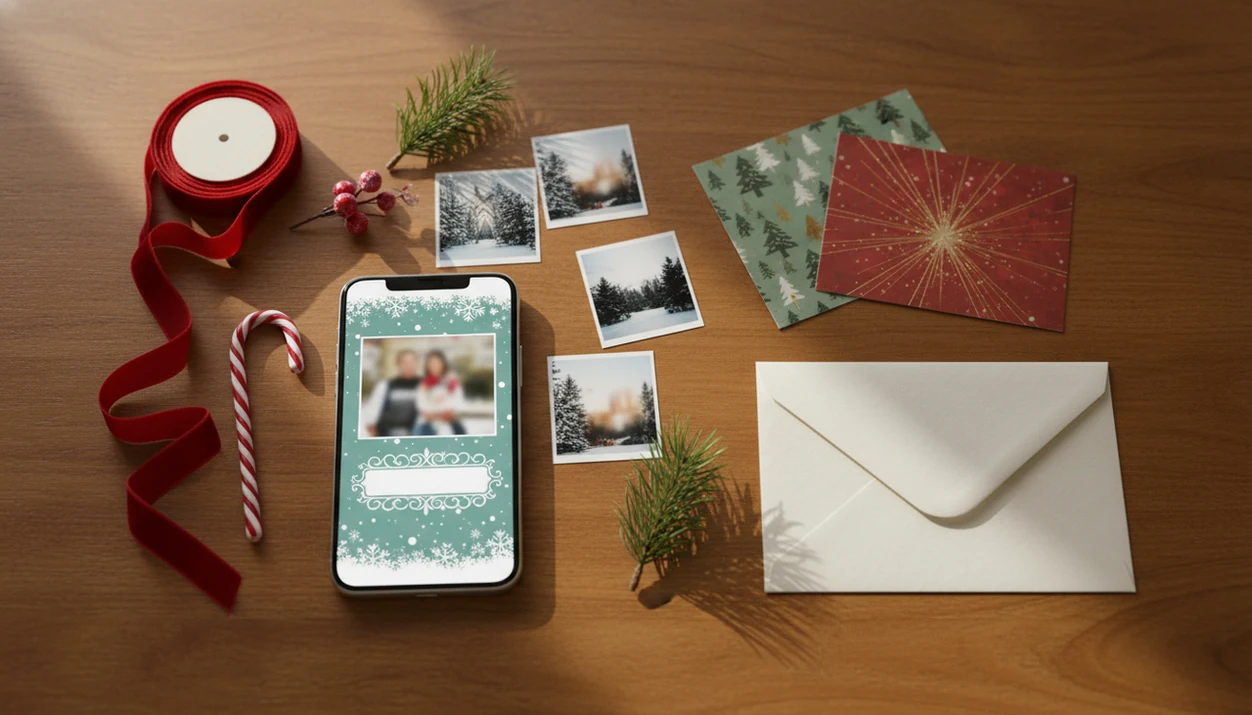
You can make an AI Christmas card with phone photos by choosing a clear picture, opening a mobile AI card maker, applying a festive style, adding your greeting, checking print size, and exporting a high-resolution PNG or PDF. This is the fastest workflow for anyone searching how to make AI Christmas card with phone without using desktop design software.
Making a phone AI holiday card means using a mobile app to combine your own photo, an AI-generated Christmas style or background, card text, and an export file for printing or digital sharing.
- Start with one sharp phone photo where faces are clear and not cropped too tightly.
- Use AI for the Christmas background, illustration style, or festive portrait effect, then add your own message manually.
- Before printing, export in a common card ratio such as 4x6, 5x7, or A6 and inspect faces, hands, text, margins, and resolution.
What an AI Christmas Card With Phone Photos Includes
An AI Christmas card made with phone photos combines four parts: a camera-roll image, festive AI styling, personalized wording, and an export file. The final result can be a printable card, textable image, email greeting, or social post.
You do not need a computer, Photoshop, or a full design session. At 9:47 p.m., a decent phone photo and a charged-enough battery can be enough.
XmasCard is a Christmas card app that turns one photo into printable Christmas cards and holiday greetings for families, couples, and small businesses. Tools like XmasCard and PiXmas Cards sit in the practical middle ground between a blank design canvas and a one-tap filter: they turn phone photos into printable cards, digital greetings, or festive portraits with AI styles.
Before You Make an AI Christmas Card on Phone
Before you make an AI Christmas card on phone, decide what photo, app, privacy level, and output you need. A little setup prevents the usual “why is Grandma cropped out?” problem.
- Choose a bright, sharp family, couple, pet, or business photo with visible faces.
- Avoid photos where important people are near the edge, since card crops can cut them off.
- Pick the destination first: print, text message, email, or social media.
- Check whether the AI app requires an account, paid export, watermark removal, or cloud upload.
- Review app permissions before uploading family photos; the FTC advises checking what data an app collects and shares before you install or use it source.
- Phone-only card making is practical because 85% of U.S. adults owned a smartphone as of 2023, according to Pew Research source.
A porch-light family snapshot can work if faces are sharp. A blurry zoomed-in screenshot usually will not.
How Phone AI Holiday Card Generation Works
Phone AI holiday card generation works by reading your uploaded image, identifying the main subjects, and applying a generated or edited Christmas scene around them. The technical pieces often include subject segmentation and image embeddings, which simply means the app tries to understand who is in the photo and what visual style fits.
- The app analyzes the phone photo and may separate people, pets, or products from the background.
- A prompt such as “cozy snowy cabin,” “watercolor Christmas portrait,” or “cartoon family in Santa hats” guides the style.
- AI may change lighting, background, clothing details, props, and composition.
- The layout editor usually handles text, margins, card size, and export.
- The output still needs human review because models can invent odd fingers, warped ornaments, or one red-eye flash that somehow gets worse.
Generative AI is becoming familiar to everyday users; Pew Research Center reported that about one-quarter of U.S. adults had used ChatGPT by early 2024 source. For families, the safest method is to use AI for the style, then manually approve every face, word, and crop.
How to Use Your Phone to Make an AI Christmas Card
To make AI Christmas card on phone, move in this order: photo, size, prompt, generation, wording, export. That sequence keeps the holiday card draft from turning into a Downloads folder full of duplicates.
- Choose the best phone photo, preferably one with clear faces and extra space around heads and shoulders.
- Set the card size or aspect ratio, such as 4x6, 5x7, square, or A6.
- Describe the Christmas style in a clear prompt, including mood, setting, colors, and card type.
- Generate several versions and pick the cleanest one, not just the most dramatic one.
- Add greeting text, names, year, and optional business details in the card editor.
- Export as PNG or PDF for print, or as JPG/PNG for digital sharing.
For one-photo workflows, an AI Christmas card from one photo is often easier than a collage because fewer crops and faces can break.
Step 1: Pick a Phone Photo for an AI Christmas Card
What phone photo works best for an AI Christmas card? Use a sharp image with clear faces, good lighting, and enough room around heads, shoulders, paws, or products.
Simple backgrounds help if the AI tool will replace the scene. Avoid motion blur, heavy filters, sunglasses, extreme shadows, and tiny full-body figures. Yellow living-room light is fixable sometimes. A toddler looking away is often more acceptable than a smeared face.
For families, choose the photo where everyone looks acceptable rather than perfect. Some modern phone tools, including Google Photos, Magic Editor, Best Take, and similar device features, can help clean up expressions or distractions before the card-making step. If your source image is only a selfie, a tool that can turn selfie into Christmas card may fit better than a full layout app.
Step 2: Choose an AI Christmas Card Style on Phone
Clear Christmas card prompts beat vague ones. Name the subject, style, setting, mood, colors, and card format instead of typing only “make it festive.”
- Realistic snowy portrait: Good for families who want the card to still look like a photo.
- Watercolor or illustrated style: Softer for couples, pets, and baby announcements.
- Vintage postcard: Works well for travel photos, old houses, or classic red-and-green greetings.
- Santa-hat cartoon: Fun for kids, pets, or a casual textable image.
- Elegant minimal: Better for small businesses, client notes, or logo-friendly cards.
Copyable prompt examples: - “Family photo, realistic snowy portrait, warm lights, 5x7 Christmas card.” - “Couple holiday card, watercolor style, soft cream background, simple greeting space.” - “Dog Christmas card, vintage postcard look, red scarf, snowy yard.” - “Small business holiday greeting, elegant minimal style, navy and gold, room for logo.”
Avoid asking for too many props, fonts, and face changes at once. Different apps specialize in photo re-editing, from-scratch artwork, animated e-cards, or printable layouts, which is why the AI Christmas card generator vs template maker choice matters.
Step 3: Add Wording to Your Phone AI Holiday Card
Add real text in the card editor instead of relying on AI-generated words inside the image. AI lettering can look correct at a glance, then turn into nonsense when you zoom in.
Short wording works best on a phone AI holiday card: - Merry Christmas - Happy Holidays - Love from the Martins - Wishing you peace and joy
Use one decorative font for the greeting and one simple font for names, the year, or business details. Keep strong contrast between the text and background. White script over snow can disappear fast.
For small businesses, keep the message plain: “Thank you for a wonderful year” or “Warm wishes from our team.” Add a logo carefully, with enough margin so it does not look pasted over the design. A client list open beside the card is not the time for fancy unreadable type.
Step 4: Check Print Size for an AI Christmas Card on Phone
Choose the card ratio before final design, because changing it later can cut off faces, words, or borders. For printable cards, aim for a high-resolution export with a 300 dpi equivalent, then use PNG or PDF when the printer accepts it. Adobe’s print-resolution guidance also treats 300 dpi as a common benchmark for sharp printed images source.
| Output type | Common size or ratio | Recommended format | What to check |
|---|---|---|---|
| Photo print card | 4x6 | PNG or PDF | Faces away from edges |
| Standard mailed card | 5x7 | PNG or PDF | Text margin and bleed |
| Square digital card | 1:1 | JPG or PNG | Centered subject |
| A6 card | 4.1x5.8 approx. | PDF or PNG | Printer scaling |
Bleed means the design extends slightly past the cut line. Safe margin means faces and words stay inside the area that should never be trimmed.
Not all apps export true print-quality files. For mailed cards, a printable Christmas card maker workflow should let you inspect size, resolution, and file type before ordering. For texting or email, JPG or PNG is usually fine, and e-card use has been common for years among online greeting card senders.
Common Mistakes When You Make AI Christmas Card on Phone
The most common phone AI Christmas card mistakes happen at export, not during the fun style step. Zoom in before you send the final file.
- Using a blurry phone photo makes every AI version look soft.
- Accepting weird hands, strange teeth, odd eyes, or distorted pet faces makes the card feel fake.
- Trusting AI-generated text can leave misspelled names or broken lettering.
- Ignoring crop ratio can cut off siblings squeezing onto one step.
- Using too many fonts makes the greeting harder to read.
- Exporting a low-resolution screenshot is usually worse than using the app’s PNG or PDF export.
- Skipping a test preview hides problems until after printing or sharing.
Screenshots often compress the image and include the wrong screen dimensions. Also, AI design can still show poor taste if the colors clash or the layout is crowded. Clean beats busy.
Final Review Checklist for a Phone AI Holiday Card
Run one final review before texting, emailing, posting, or ordering prints. The goal is a holiday greeting that still feels like your family, not a generic AI artwork sample.
Check these items: - Faces look natural. - Hands, teeth, eyes, and pet faces are not distorted. - Names are spelled correctly. - The year is correct. - Greeting text has enough contrast. - The crop does not cut off heads, shoulders, paws, or logos. - Margins are safe for print. - File type matches the destination. - Resolution is high enough for the selected size. - The app privacy terms are acceptable before uploading family photos.
Send a test image to yourself before texting the final card to others. For print, order one test print or use the printer preview. A fridge magnet holding the proof will reveal crooked margins faster than wishful thinking.
Evidence Behind Phone AI Card Quality Checks
The quality checks are based on practical print requirements, common mobile use, and privacy guidance for photo apps. Some items are measurable, while others are expert judgment from reviewing AI-edited family images.
- Treat the phone as the default workspace because smartphone ownership is now widespread enough that a phone-first holiday card flow matches how many people already store, edit, and send photos.
- Separate print from sharing: mailed cards need the right physical size, safe margins, and a high-resolution export, while texts, emails, and social posts mainly need a clear JPG or PNG that looks good on screen.
- Use 300 dpi as a print target when the app or printer gives you resolution details, and prefer PNG or PDF for print exports when those formats are available.
- Review privacy before uploading family, child, client, or pet photos to a cloud-based AI tool, since some apps process images off-device or retain data under their own terms.
- Apply human judgment to faces, hands, teeth, pet features, text contrast, style taste, and whether the result still feels personal. Those checks are not universal standards, but they catch the problems families notice first.
Limitations
AI Christmas cards are fast, but they are not automatic quality control. Review the file like you would review a school photo order.
- AI may create distorted hands, strange teeth, odd eyes, warped ornaments, or unrealistic faces.
- Some tools require paid subscriptions, credits, watermarks, or specific phone models.
- Cloud-based AI tools may upload personal family photos, so read the privacy policy before using them.
- Not every phone app exports true print-quality files or CMYK-optimized color.
- AI-generated text inside images is often misspelled, melted, or visually broken.
- Print colors can differ from the phone screen, especially with red backgrounds and warm skin tones.
- Busy AI backgrounds can make greeting text hard to read.
- Some styles over-edit people so the card no longer feels personal.
- Home printers can still pull cardstock slightly crooked, even when the file is fine.
Tools such as XmasCard, Canva, Picsart, Photoleap, and PiXmas Cards may help with different parts of the workflow, but you still need to check the crop, export, and privacy settings.
FAQ
Can I make an AI Christmas card on my phone for free?
Yes, free tools can work for a basic phone AI holiday card. Exports, watermarks, resolution, premium styles, or print-ready files may be limited.
Which phone apps work best for AI Christmas cards?
AI card makers are useful for finished greetings, Google Photos-style editors help improve images first, and mobile design apps give more layout control. Dedicated Christmas card apps such as XmasCard are usually simpler when you want one photo turned into a printable or shareable card.
Can I make an AI Christmas card with an iPhone?
Yes, iPhone users can make AI Christmas cards through mobile AI card apps, browser tools, and photo or design apps. Save the finished file to Photos, Files, or the iPhone share sheet.
Can I make an AI Christmas card with an Android phone?
Yes, Android users can use AI card makers and browser-based tools. Some Android models also include built-in AI photo editing features before the card step.
What prompt should I use for an AI Christmas card?
Use this formula: subject, style, setting, mood, colors, and card format. Example: “family photo, cozy snowy cabin, warm lights, classic red and green, 5x7 Christmas card.”
Can I print an AI Christmas card made on my phone?
Yes, if the card size, resolution, margins, and file format are suitable for printing. Use PNG or PDF when possible and check a preview before ordering.
What file format is best for a phone-made Christmas card?
PNG or PDF is usually better for print. JPG or PNG works well for texting, email, and social sharing.
Are my family photos private when I use an AI card app?
Privacy depends on the app and whether it uploads photos to cloud-based AI services. Review the app’s privacy policy before uploading children’s photos, family portraits, or client images.