
What App Identifies the Best Card Size for Printing Photos?
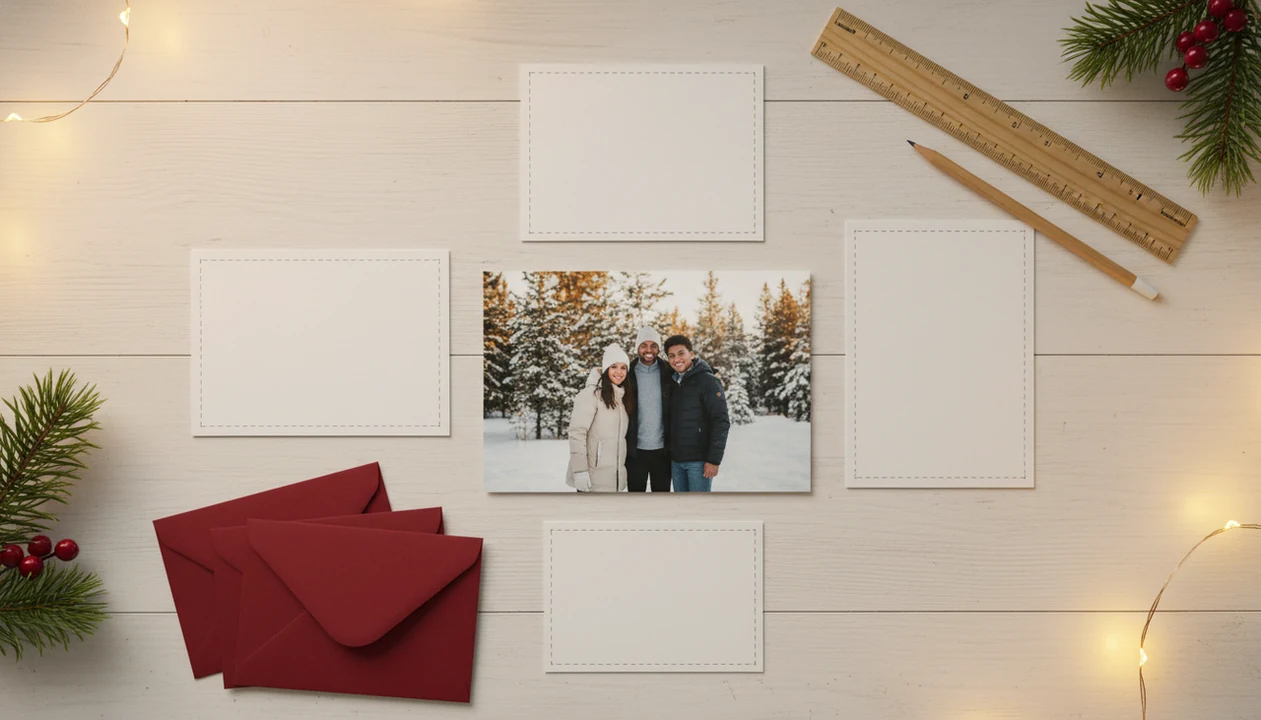
If you are asking “what app identifies best card size for printing,” XmasCard can check your photo’s ratio, resolution, orientation, and holiday card layout before you print. The app should recommend sizes such as 4×6, 5×7, square, or A6, then show bleed and safe zones so faces and text do not get cut off.
Definition: A card size checker app is a print size app that reads an uploaded image and recommends the card dimensions most likely to print sharply without awkward cropping.
TL;DR
- Choose an app that checks pixels, aspect ratio, orientation, bleed, trim, and safe zones.
- Use 300 DPI as the practical benchmark for crisp printed holiday cards.
- For Christmas cards, pick a tool that previews real card templates, not just raw paper dimensions.
What a Card Size Checker App Should Tell You First
“What app identifies the best card size for printing?” A useful card size checker app should identify printable card size from the photo’s pixels, aspect ratio, orientation, and how the image fits inside a real card layout.
The first screen should not make you guess. It should say whether your phone photo fits 4×6, 5×7, square, A6, or a smaller card, then warn you before ordering if the crop is risky. At 9:47 p.m., when the kitchen table has envelopes on it and the phone battery is at 18%, that warning matters.
Holiday-card tools in this lane should turn one photo into printable cards and digital greetings, then show size, crop, and sharing guidance before checkout. They should not promise that every low-resolution or tightly cropped photo will print well.
How a Print Size App Calculates the Best Card Size
A print size app calculates card size by reading pixel dimensions, detecting orientation, comparing the photo’s aspect ratio to card formats, and estimating whether the file has enough detail for print. In plain terms, it asks, “How large can this image go before it starts looking soft?”
Here is how it works. You upload a photo, the app reads its width and height in pixels, then checks whether it is portrait, landscape, or square. Next, it compares the image ratio with common card shapes. A 300 DPI target is widely used as a practical high-resolution benchmark for printed cards, so a 1500×2100 pixel photo fits a 5×7 card better than a much larger print. For context, Adobe’s print-resolution guidance also treats 300 pixels per inch as a common target for high-quality printed images: https://helpx.adobe.com/photoshop/using/image-size-resolution.html.
Tiny label, big mistake.
Embedded DPI metadata can be missing or misleading, especially after screenshots, messaging apps, or downloads. Pixels matter more than the file label. For deeper resolution checks, the related guide on what app identifies photo resolution for printing covers the photo-quality side in more detail.
Best Card Size Matches for Common Photo Ratios
The safest card size is usually the one closest to your photo’s aspect ratio, with enough pixels left for 300 DPI printing. If the ratio is off, the app must choose between cropping, adding borders, or shrinking the photo inside the design.
| Photo ratio or source | Likely card size | Likely layout issue |
|---|---|---|
| 3:2 landscape phone or camera photo | 4×6 | Usually fits cleanly, but text needs safe margins |
| 7:5 or cropped portrait | 5×7 | Faces near the edge may trim in portrait layouts |
| 1:1 square crop | 5×5 square | Works well for centered faces, pets, or ornaments |
| A-series greeting layout | A6, 105×148 mm | Needs careful bleed because the shape differs from 4×6 |
| Wide logo or small horizontal image | US business-card style, 3.5×2 inches, or ID-1 style, 85.60×53.98 mm | Too small for family photos, useful for inserts or tags |
For Christmas work, the full Christmas card size for printing choice should happen before wording. A teenager hiding behind bangs can survive a centered square crop. A greeting line tucked near the bottom may not.
Before You Use a Card Size Checker App
Before you use a card size checker app, collect the cleanest photo and decide what kind of card you are making. A few minutes of setup can prevent the app from recommending the wrong size or export.
Compressed attachments, screenshots, and social-media saves can hide the real quality of a picture. The checker can only judge the file you give it, so start with the original whenever possible. Also decide early whether this is a mailed card, a digital greeting, or both, because print and phone sharing need different crops and file choices.
- Use the original camera photo from the phone, camera, or cloud library instead of a message attachment that may have been downsized.
- Decide your delivery plan before designing: mailed cards, digital greetings, or separate versions for each.
- Check the printer’s file rules so you know whether to build toward JPG, PDF, PNG, or another accepted format.
- Write the greeting first if you plan to include names, dates, or a short note, then test safe zones and trim edges with that text in place.
How to Use a Card Size Checker App for Christmas Cards
Use a card size checker app by starting with the photo you already have, then letting the app narrow the print sizes before you decorate the card. For last-minute senders, this is faster than designing first and discovering the photo will not print.
- Upload the photo from your camera roll, not a compressed screenshot from a message thread.
- Choose print or digital so the app knows whether to check paper size, phone sharing, or both.
- Review recommended sizes such as 4×6, 5×7, square, or A6, and avoid sizes marked low resolution.
- Check the crop around faces, pets, sleeves, and any greeting text near the trim edge.
- Turn on safe zones so bleed, trim, and “no text here” areas are visible before export.
- Export the file as the format your printer or sharing plan needs, then save a backup.
A printable Christmas card maker should make those checks visible before you reach the checkout screen.
Five Print Size App Checks Before You Order Cards
Before you order cards, a print size app should run five checks that are easy to understand and hard to ignore. A sharp preview on a phone screen does not guarantee a sharp printed card.
- Resolution check: The app should estimate print quality at the chosen size, using 300 DPI or higher as a practical high-resolution benchmark.
- Aspect ratio check: The app should show whether the photo naturally fits 4×6, 5×7, square, A6, or a smaller format.
- Orientation check: The app should warn when a portrait photo is being forced into a landscape card, or the other way around.
- Bleed and safe-zone check: The app should show what may be trimmed and where text should not go.
- Printer export check: The app should export a file type your lab accepts, often JPG for photo cards or PDF for some printable designs.
The PDF vs JPG for Christmas cards choice usually depends on the printer, not personal preference.
Sources for Card Size and Print Resolution Checks
Good card-size checks rest on three boring but useful standards: enough pixels, the right paper dimensions, and room for trimming. Use the sources as guardrails, then follow the exact upload rules from the lab that will print the cards.
- Check resolution against a 300 PPI working target. Adobe’s image-size guidance treats 300 pixels per inch as a common high-quality print benchmark, which is why a card app should translate pixels into likely print size instead of trusting a vague “HD” label.
- Confirm the paper size before designing. A6 is 105×148 mm in the ISO A-series system, so it is close to—but not the same shape as—a 4×6 photo card.
- Add bleed and keep text inside the safe area. Print lab guides commonly ask for artwork to extend past the trim edge, with names and greetings pulled inward; Canva’s print guide explains the same bleed-and-margin idea in plain terms: source.
- Verify the lab’s trim rules before checkout. Cutting tolerances vary by vendor, paper stock, and machine, so one lab’s safe-zone preview may not match another lab’s blade line exactly.
Card Size Checker App Mistakes That Cause Cropping
Most bad card crops come from ratio mismatch, low-resolution enlargement, ignored bleed, or text placed too close to the edge. The app can warn you, but it cannot make a print lab redesign the file after upload.
A common mistake is dropping a vertical family photo into a wide 4×6 card. Someone’s shoulder disappears. Another is enlarging a small download until it fills a 5×7 layout; it may look fine on screen, then print fuzzy. We have also seen greetings placed inside the trim zone, especially when someone rushes a proofread before school pickup.
Print labs often process the file you send. They may center, crop, or reject it, but they usually will not fix a dog leash in the corner or move “Merry Christmas” away from the blade line. For families, safe-zone preview is not decoration. It is damage control.
Printable and Digital Card Sizes in One Print Size App
A good holiday print size app should recommend both physical card sizes and digital greeting dimensions. The same photo often needs one crop for mailed cards and another for text, email, or social sharing.
Print wants bleed, trim, and enough pixels for paper. Digital sharing cares more about screen ratio, file size, and whether the greeting is readable on a phone. The download folder can fill up fast with card-final.jpg, card-final-2.jpg, and final-final-card.pdf if the app does not label exports clearly.
The useful workflow is separation: one export path for mailed cards, another for digital greetings sent by text, email, or the iPhone share sheet. For families sending both, one photo should not mean one crop forever.
Limitations
A card size checker app can guide size choice, but it cannot guarantee every print lab result. Paper, ink, machines, and original photo quality still matter.
- Poor photo quality stays visible: Motion blur, heavy noise, red-eye flash, and missed focus can still print badly.
- DPI metadata can be wrong: A file may claim one DPI value while the real pixel count tells a different story.
- AI upscaling has limits: Upscaling may smooth edges or create odd face details when checked at full zoom.
- Printer bleed rules vary: Walgreens, CVS, home inkjet trays, and online labs may use different trim allowances.
- Crop preference is subjective: One person may accept a tight face crop; another may want more background.
- Screen previews can mislead: Bright phone screens hide softness, compression, and color shifts.
- Home printers add variables: Cardstock can pull slightly crooked, especially from a small inkjet tray.
A size recommendation is a strong checkpoint, not a delivery or print-quality guarantee.
FAQ
What app checks card size?
A card size checker app or print size app checks photo dimensions, aspect ratio, orientation, and print quality. For holiday cards, choose one that previews the card layout, crop, bleed, and safe zones before export.
Can an app detect print size?
Yes, an app can estimate print size from pixel dimensions, aspect ratio, and intended DPI. It cannot verify every printer’s exact output without that printer’s specifications.
What size is best for photo cards?
Common photo card sizes include 4×6, 5×7, 5×5 square, and A6. The right size depends on the photo ratio and where faces and text sit.
Is 300 DPI necessary for photo cards?
300 DPI is a practical benchmark for sharp printed photo cards. Lower DPI may still work for small cards, but softness becomes more likely.
Why do card photos get cropped?
Card photos get cropped when the photo ratio does not match the card ratio. Bleed and automatic printer trimming can also remove edge details.
Can blurry photos print well on cards?
No app can fully fix motion blur, heavy noise, or poor focus. A smaller card size may hide some flaws, but it does not restore missing detail.
What is card bleed in printing?
Bleed is extra artwork that extends beyond the final trim edge. It helps prevent thin white borders after cutting.
Does A6 work for greeting cards?
Yes, A6 is a common greeting-card format at 105×148 mm. It works well when the photo and wording fit the taller, narrower shape.