
How To Print Christmas Cards From Phone Photos
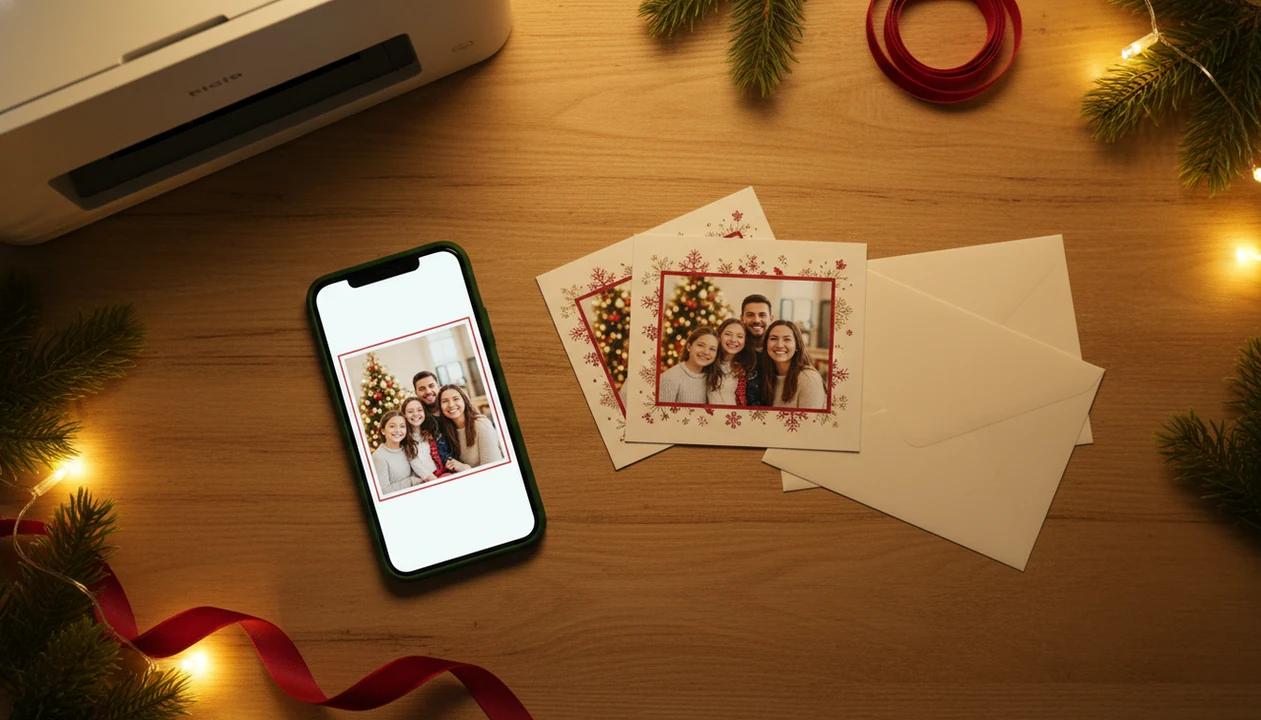
Here is how to print Christmas cards from phone photos: choose a clear image, place it in a 4x6 or 5x7 holiday card layout, export or order the correct print size, then print at home, pick up locally, or mail through a card service. The key checks are photo resolution, paper size, orientation, file type, and a proof preview before you pay or print.
> XmasCard is a Christmas card app that turns one photo into printable Christmas cards and holiday greetings for families, couples, and small businesses.
- Use a high-resolution phone photo with good light and minimal zoom for the sharpest printed card.
- Match the card template, export size, printer setting, and paper size before printing.
- For last-minute cards, local pickup or mailed card services are often easier than home printing.
Phone Photo Christmas Cards At A Glance
- A computer is optional for most basic phone photo Christmas cards; a phone can handle upload, crop, text, checkout, and printing.
- The three main routes are home printing, local pickup, and online mailing through a card service.
- The core checks are resolution, size, file type, orientation, and proofing before you print.
- Phone-first card making is common because 84.7% of U.S. households reported having a smartphone in 2021, according to the Census Bureau source.
- For last-minute families, local pickup often beats home printing because it avoids ink, feed, and cardstock surprises.
The 9:47 p.m. kitchen-table card session is real. Phone battery at 18%, kids asleep, one usable photo left.
How Printing Christmas Cards From Phone Photos Works
Printing Christmas cards from phone photos works by moving one image through a design, export, and print-production workflow. The phone photo is uploaded, placed inside a template, cropped, layered with text, exported as a JPG or PDF, then sent to a printer or card service.
The technical part is simple: the app creates a print file with image data, crop boundaries, and text layers. In plain terms, it turns your phone photo into something a printer can understand. Print quality still depends on two things, the original image file and the printer or photo lab. Broadband also matters; the National Center for Education Statistics reported 92% of U.S. households had broadband internet in 2021 source.
Advanced layouts can still be easier on a computer, especially folded cards with inside panels. A laptop gives more room to catch a dog leash in the corner.
Requirements Before You Print Holiday Cards From Phone
You need a clear photo, a card format, a printing route, and the right account or printer access before you start. Gather these first so you don't discover missing ink after the design is finished.
- Original phone photo: Use the full-size image from your camera roll, not a screenshot, messaging-app save, or social media download.
- Card format: Choose 4x6, 5x7, folded, flat, one-sided, or two-sided before designing. Our Christmas card size for printing guide covers common dimensions.
- Mobile tool: Use a browser card maker, printer app, local photo app, or a printable Christmas card maker.
- Home printer setup: Confirm the same Wi-Fi network, correct tray, supported cardstock or photo paper, and enough ink.
- Online order details: Have the shipping address, recipient list, pickup store, return address, or mailing option ready.
That Downloads folder fills up fast. Rename the final file before you order.
How To Use A Phone To Print Christmas Cards
To use a phone to print Christmas cards, build the card at the final print size and proof it before ordering or printing. This is the safest workflow for anyone learning how to print Christmas cards from phone photos.
- Select a sharp original phone photo with good light and enough space around faces.
- Choose a 4x6, 5x7, flat, or folded template in a phone-first tool. Browser card makers, Canva, printer apps, and local photo apps can all work.
- Check the crop, orientation, greeting text, year, and safe margins before exporting.
- Export the design as a JPG for photo printing or a PDF when you need a fixed layout.
- Proof the card at full-screen zoom, then send one copy to another adult if possible.
- Print at home, order local pickup, or choose direct mailing before the mailing window closes.
Good Christmas card makers and holiday greeting guides help families turn phone photos into printable cards, digital greetings, and festive portraits using AI styles, not replace proofing, paper checks, or mailing deadlines.
Step 1: Choose A Sharp Phone Photo For Christmas Cards
“Are phone photos good enough for Christmas cards?” Yes, if you use the original, full-size photo and avoid heavy zoom, motion blur, and dim yellow light.
Start with the photo you already have, but inspect it closely. Screenshots, messaging-app saves, and social media downloads are often compressed, so they may print soft. Zoom in on eyes, faces, hair, and text areas. Check for background clutter, especially if the crop will cut close to shoulders.
Leave room for the greeting. A cocoa mustache on a child can be charming; a name covered by the template is not. Choose a vertical photo for portrait cards and a horizontal photo for landscape cards. If you're unsure, a guide to Christmas card resolution for printing can help before you order.
Step 2: Match The Christmas Card Size, Crop, And File Type
The design size should match the final printed card size, especially for 4x6 and 5x7 cards. If you design one size and print another, the card may crop faces, shrink text, or add unwanted borders.
| Print choice | What to check | Common mistake |
|---|---|---|
| 4x6 flat card | Match template, paper, and printer size to 4x6 | Designing 5x7, then printing smaller |
| 5x7 flat card | Use a 5x7 export and review trim edges | Letting text sit too close to the edge |
| Portrait layout | Keep faces away from top and bottom trim | Cropping hair or holiday hats |
| Landscape layout | Leave side margins for faces and greeting text | Cutting off a shoulder or pet |
| JPG file | Good for photo cards and local photo labs | Saving a low-quality duplicate |
| PDF file | Good for fixed layouts and text-heavy cards | Sending a file the kiosk does not accept |
Two-sided cards need extra care. Home printers can shift the back slightly, so don't place important text near the edge.
Step 3: Print Holiday Cards From Phone At Home
Home printing works when the phone can reach the printer and the printer can handle the paper. The phone and printer usually need to be on the same Wi-Fi network, or connected through the printer maker’s app.
- Connect your phone to the same Wi-Fi network as the printer, or open the printer app.
- Choose the correct printer, paper size, paper type, border setting, and orientation.
- Load cardstock or photo paper in the tray your printer instructions recommend.
- Confirm the printer supports heavier paper before using thick cardstock.
- Print one test card before the full batch.
- Reload two-sided cards in the exact direction shown by the printer app or manual.
A home inkjet tray can pull cardstock slightly crooked. It happens. For families printing 40 cards, a photo service may cost less stress than five failed test sheets.
Step 4: Order Phone Photo Christmas Cards For Pickup Or Mailing
Ordering is usually better than home printing when you need bulk quantity, thicker stock, envelopes, finishes, or fewer setup problems. Many photo services accept mobile uploads directly from your camera roll.
| Order route | Good fit | Check before checkout |
|---|---|---|
| Local pickup | Same-day or next-day cards from a pharmacy, office store, or photo counter | Pickup location, finish, quantity, and cutoff time |
| Shipped to home | Larger batches with envelopes and heavier stock | Delivery date, shipping cost, and return address |
| Direct mailing | Sending cards without addressing envelopes yourself | Mailing list, postage, message, and recipient names |
For couples comparing two card versions on a phone, ordering a small first batch can prevent a costly typo. Phone-first card makers fit this route when you want one photo to become a printable or shareable holiday card draft without moving files to a computer.
Common Phone-To-Print Christmas Card Mistakes
- Using a low-resolution photo, screenshot, or compressed download can make the printed card look blurry.
- Designing a 5x7 card but printing on 4x6 paper can crop or shrink the whole layout.
- Ignoring print preview, bleed, trim, and safe text margins can cut off names or greetings.
- Forgetting to choose cardstock or photo paper in printer settings can make colors dull.
- Printing the full batch before one test print can waste paper, ink, and envelopes.
- Waiting too late for shipping or mailing deadlines can turn a finished card into a New Year card.
For most families, one test print is easier than fixing 25 bad cards because it shows crop, color, and paper-feed problems before the full run.
Final Proof Checks Before You Print Christmas Cards From Phone
Final proofing should happen before you tap print, order, or mail. Check spelling, family names, the year, the return address, and the holiday message.
Zoom in on faces and text in the preview. Confirm size, orientation, quantity, finish, envelopes, and delivery method. If possible, send one digital proof to another person. They may catch “The Johnsons 2023” sitting on a 2024 card.
Small errors hide in familiar names.
The same phone-made design can often be saved for both digital sending and physical printing. Save a backup with a clear name, not final-final-card.pdf again.
Limitations
Printing Christmas cards from a phone is convenient, but it has real limits.
- Not every printer app or card service supports every phone file format or advanced print setting.
- Low-light, blurry, zoomed, or compressed phone photos may still print poorly.
- Home printing can cost more than expected after cardstock, ink, envelopes, and test prints.
- Double-sided cards can be hard to align on home printers.
- Some printers cannot feed thick cardstock cleanly, even when the size looks correct.
- Professional finishes, thick stock, foil, rounded corners, and bulk mailing usually require a print service.
- Late orders may miss Christmas mailing, pickup, or delivery deadlines.
- A phone screen can hide small text errors because the preview feels “good enough.”
If the card matters for a business mailing or a large family list, order earlier and proof twice.
FAQ
Can I print Christmas cards from an iPhone?
Yes. iPhone users can print through AirPrint, printer apps, mobile card makers, or photo printing services that accept uploads from the camera roll.
Apple’s AirPrint documentation explains that compatible printers can print from iPhone without installing extra drivers: source.
Can I print Christmas cards from an Android phone?
Yes. Android users can print through manufacturer printer apps, browser uploads, Google Photos sharing, and local photo service apps.
What size should I use for printable Christmas cards?
Common printable Christmas card sizes include 4x6, 5x7, and folded formats. Match the template size, export size, printer setting, and paper size.
Are phone photos good enough for printed Christmas cards?
Phone photos can print well when they are sharp, bright, and saved at original size. Low light, heavy zoom, compression, or motion blur can make prints look soft.
What file type should I use for Christmas card printing?
Use JPG for most photo cards and local photo labs. Use PDF when the printer or service needs a fixed layout with text.
Can I print Christmas cards at home from my phone?
Yes. You need a compatible printer, Wi-Fi or printer-app connection, supported paper, enough ink, and at least one test print.
Can I print double-sided Christmas cards from my phone?
Yes, if your printer or print service supports double-sided cards. Home printing requires the correct duplex setting or careful manual reloading direction.
Where can I pick up Christmas cards made from phone photos?
Many local photo labs, office stores, pharmacies, and big-box photo counters offer mobile upload and pickup. Check size, finish, pickup time, and envelope options before ordering.
Can I mail Christmas cards from my phone?
Yes. Some online card services can print, address, stamp, and mail cards after you upload the design and recipient list from your phone.