
Christmas Card Resolution for Printing Without Blur
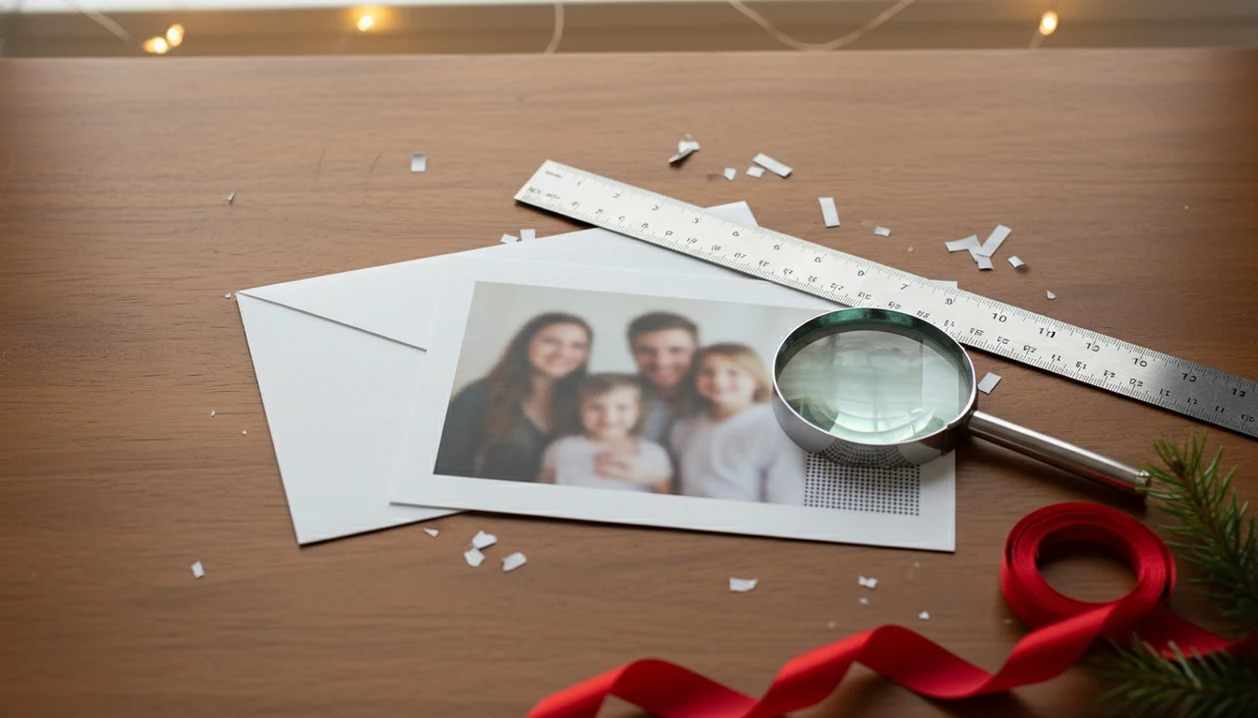
For sharp Christmas cards, use 300 DPI at the final printed size: a 5x7 card needs about 1500 x 2100 pixels before heavy cropping. Christmas card resolution for printing is really about pixel dimensions, not file size, file type, or whether the image came from a phone, camera, or AI tool.
> Definition: Christmas card resolution for printing is the number of image pixels available for each printed inch of the finished card, usually described as DPI or PPI.
- Aim for 300 DPI for the cleanest print, but 240–260 DPI is often acceptable for small Christmas cards.
- A 5x7 Christmas card needs about 1500 x 2100 pixels at 300 DPI before bleed, trim, or cropping.
- Modern phone photos usually have enough pixels for cards, but cropped screenshots, social downloads, and small AI renders often do not.
Christmas Card Resolution for Printing Pixel Targets
Use this formula first: card inches × DPI = required pixels. If the card is 5x7 inches and you want 300 DPI, the image should be about 1500 x 2100 pixels before you crop or add bleed.
| Card print size | 300 DPI pixel target | 240 DPI pixel target | Practical note |
|---|---|---|---|
| 4x6 flat card | 1200 x 1800 px | 960 x 1440 px | Easy for most original phone photos |
| 5x7 flat card | 1500 x 2100 px | 1200 x 1680 px | Common family card size |
| 5x5 square card | 1500 x 1500 px | 1200 x 1200 px | Watch face crops |
| 7x10 folded card front | 2100 x 3000 px | 1680 x 2400 px | Needs more room for trimming |
A 5x7 Christmas card needs about 1500 x 2100 pixels at 300 DPI. For small cards, 240 DPI can still look good at normal viewing distance, especially on matte paper.
The kitchen-table check is usually enough.
DPI for Christmas Cards in Plain English
DPI or PPI means how many image pixels are assigned to each printed inch of the card. It matters more than labels like “HD,” “high quality,” or “print ready,” because those words do not tell you the actual pixel count.
Most photo labs treat 300 DPI at final size as the clean target for crisp photo cards. Adobe’s image-size documentation explains the same print-resolution relationship: print dimensions depend on pixel dimensions divided by pixels per inch (https://helpx.adobe.com/photoshop/using/image-size-resolution.html). Screen sharpness is different. A card preview can look fine on a tablet screen passed around dinner, then print soft because the printer had to stretch too few pixels across paper.
Changing the DPI label alone does not create more detail. A 900 x 1260 image renamed as 300 DPI is still only 900 x 1260 pixels. If you need help choosing the physical format first, the Christmas card size for printing guide covers common card dimensions.
Five Christmas Card Resolution Facts Before Printing
- 300 DPI is the safest target for sharp printed Christmas cards, especially when faces, pets, or small greeting text matter.
- 240–300 DPI is usually acceptable for small-format photo cards viewed by hand, not from across a room.
- A 12 MP phone photo around 4000 x 3000 pixels is usually enough for a 5x7 card if you do not crop it hard.
- AI images print well only when their pixel dimensions match the card size, such as about 1500 x 2100 pixels for a 5x7.
- JPEG versus TIFF and MB file size do not determine printable resolution; pixel dimensions and final print size do.
For most families, the original camera file is safer than the cute version saved from a text thread. The dog leash in the corner can be cropped later, but every crop spends pixels.
Before You Start: Files and Print Specs to Gather
Before you calculate resolution or export a Christmas card, gather the original image and the printer’s exact production specs. This prevents the common last-minute surprise where the photo is large enough, but the crop, fold, bleed, or file format is wrong.
- Start with the original camera or phone file, not a screenshot, text-message copy, social-media download, or preview saved from a design app. Those versions are often smaller or more compressed.
- Confirm the finished card size, orientation, and format before editing. A vertical 5x7 flat card, a horizontal 5x7, and a folded card front can all need different crops.
- Find the lab’s bleed, trim, and safe-margin rules. If the design runs to the edge, you need extra image outside the final cut line, plus room inside the card for faces and text.
- Save an untouched backup before cropping, resizing, retouching, or upscaling. If the first crop gets too tight, you can return to the full file.
- Check whether the printer wants JPG, PDF, PNG, or another format, then export once at high quality instead of repeatedly resaving the same file.
Christmas Card Resolution Mechanics for Printing
Christmas card resolution works by spreading the original pixels across the final printed inches. When the print size gets larger, the same pixels cover more paper, so the effective DPI drops.
If an image is undersized, the printer or upload system must enlarge it. That stretch causes blur, stair-step edges, or blocky texture around faces and lettering. Crop, bleed, trim, and safe margins also reduce usable pixels because the full image is not always visible on the finished card.
How Christmas card resolution works: original pixels are divided by final print inches to produce effective DPI, and any crop or enlargement lowers that number.
Resolution is not the only problem. Poor focus, motion blur, yellow living-room light, and low-light noise can still show at 300 DPI. A technically large photo can print badly if the toddler moved right as the shutter fired.
How to Use Christmas Card Resolution for Printing
Use Christmas card resolution by checking the card size, DPI target, bleed, and crop before you export or order. The goal is to judge the real pixels that will land on paper, not the pretty preview on screen.
- Choose the finished card size first, such as 4x6, 5x7, square, or folded, because every resolution check depends on those final inches.
- Multiply each printed dimension by your target DPI. At 300 DPI, a 5-inch side needs 1500 pixels and a 7-inch side needs 2100 pixels before extra trimming space.
- Add bleed pixels before cropping or exporting if the design runs to the edge. A small bleed area can change the artwork size enough to matter.
- Check the original image dimensions in the file info or photo details, not a preview, thumbnail, screenshot, or text-message copy.
- Review the crop box before sending files to print. Make sure faces, names, greetings, and pets are not sitting on the trim line.
If the crop feels tight on screen, it will usually feel tighter after trimming.
5x7 Christmas Card Photo Resolution Check
Use this quick 5x7 check before you order prints or export a printable version.
- Open the original image on your phone or desktop, not a screenshot, message preview, or social-media download.
- Find the pixel dimensions in the photo info panel, file properties, or a tool like what app identifies photo resolution for printing.
- Divide the width by 5 and the height by 7 to estimate DPI for a vertical 5x7 card.
- Confirm the image is near 1500 x 2100 pixels for 300 DPI, or at least around 1200 x 1680 pixels for 240 DPI.
- Check the crop preview before ordering prints, especially if faces or text sit near the edge.
XmasCard can help place one original photo into printable holiday-card layouts, but it cannot make a tiny screenshot print sharply. Use it for crop checks, size checks, and export review; start with the original image whenever possible.
Phone Photo Resolution for Christmas Cards
Are phone photos good enough for printed Christmas cards? Most modern phones capture enough pixels for 4x6 and 5x7 cards when you use the original camera file.
Pew Research Center reported that 85% of U.S. adults owned a smartphone in 2021 (https://www.pewresearch.org/internet/fact-sheet/mobile/), which helps explain why many holiday-card drafts start with a phone photo rather than a camera file.
For a 5x7 card, an uncropped 12 MP image around 4000 x 3000 pixels has far more pixels than needed. Problems start after cropping, screenshots, text-message compression, or social-media downloads. Use the original camera file whenever possible, then save a backup before editing.
For family cards, an original phone photo is often better than a downloaded copy because it preserves more printable pixels.
AI Image Resolution for Printable Christmas Cards
AI images can print well on Christmas cards when their pixel dimensions meet the final card size. Do not assume “HD,” “4K,” or a clean app preview means the export is large enough for paper.
Open the saved file and check the actual pixels. A child portrait with painted snowflakes may look charming on screen, but a 1024 x 1024 export will not fill a 5x7 card at 300 DPI without enlargement. Slight upscaling can help when the image is close. A 10–25% increase is usually safer than doubling a small file.
Push too far and the texture gets weird. Faces may gain fake pores, plastic skin, or sharp edges that were never in the original image. Apps such as Canva, Picsart, and PiXmas Cards can be useful for layout ideas, but the final export still needs enough pixels.
Bleed, Safe Margins, and Crop Risk for Christmas Cards
Bleed is extra image that extends past the trim edge, commonly 0.125 inch on each side. That 1/8-inch bleed convention is also used in many commercial print templates and artwork guidelines, such as PsPrint’s bleed setup guidance (https://www.psprint.com/resources/bleed/). It prevents a white sliver from showing if the cutter shifts slightly.
Safe margin is the opposite idea. Keep faces, names, greetings, dates, and important details at least 0.25 inch inside the trim line. If siblings are squeezing onto one step, do not place the youngest child’s cheek near the edge. It may disappear after trim.
A 5x7 card with bleed may require artwork closer to 5.25 x 7.25 inches. At 300 DPI, that is about 1575 x 2175 pixels. Cropping a horizontal phone photo into a vertical card can also reduce effective resolution fast. For print-first projects, a printable Christmas card maker should show the crop box before export.
Common Christmas Card Resolution Myths
- The MB myth: A larger file size does not always mean a sharper print. Compression settings can change megabytes without adding pixels.
- The TIFF myth: TIFF does not automatically create higher resolution than JPEG. It may preserve quality better during editing, but the pixel count stays the same.
- The 300-or-fail myth: Exactly 300 DPI is not always required. Small cards often look acceptable around 240–260 DPI.
- The 4K myth: Any 4K or HD image is not enough for every card size. Compare pixels to inches.
- The repair myth: 300 DPI cannot fix blur, missed focus, red-eye flash, or heavy low-light noise.
For quick exporting questions, the PDF vs JPG for Christmas cards breakdown helps separate format choice from actual resolution.
Limitations
Resolution checks reduce print surprises, but they do not guarantee a clean card. Before you send a holiday card draft to the lab, watch for these limits:
- Low-resolution or heavily cropped images may still look soft on paper.
- 300 DPI cannot repair motion blur, missed focus, or severe low-light noise.
- Aggressive AI upscaling may create visible artifacts, fake detail, or strange facial texture.
- Some print labs downsample, recompress, or color-convert uploads after you send them.
- Very saturated phone or AI colors may print duller after sRGB or printer conversion.
- Paper finish, printer calibration, and ink process can affect perceived sharpness.
- Home inkjet trays can pull cardstock slightly crooked, even when the file is sized correctly.
Scissors trimming a white border is a warning sign. If the preview already looks tight, fix the crop before printing.
FAQ
What DPI should I use for Christmas cards?
Use 300 DPI for the sharpest Christmas card prints. For small cards, 240–260 DPI is often acceptable at normal viewing distance.
What resolution do I need for a 5x7 Christmas card?
A 5x7 Christmas card needs about 1500 x 2100 pixels at 300 DPI. Add more pixels if the design includes bleed or heavy cropping.
Are phone photos good enough for printed Christmas cards?
Modern original phone photos are usually good enough for 4x6 and 5x7 cards. Cropped screenshots, texted images, and social downloads are more likely to print soft.
Can AI images be printed on Christmas cards?
AI images can be printed on Christmas cards if their pixel dimensions match the card size. For 5x7, aim for about 1500 x 2100 pixels before crop or bleed.
Does file size affect Christmas card print quality?
File size alone does not determine print quality. Pixel dimensions, compression, focus, and final card size matter more than megabytes.
Is JPEG okay for printing Christmas cards?
A high-quality JPEG is usually fine for Christmas card printing when the pixel dimensions are adequate. Avoid repeatedly saving and recompressing the same file.
Does changing DPI improve image resolution?
Changing DPI metadata does not add real pixels. It only changes how existing pixels are assigned to print inches.
How much bleed do Christmas cards need?
Many Christmas card layouts use 0.125 inch bleed on each edge. Keep faces, names, and greetings at least 0.25 inch inside the trim line.
Why did my Christmas card print blurry?
Common causes include too few pixels, heavy cropping, compression, motion blur, poor focus, or low-light noise. A 300 DPI export cannot fix blur already present in the image.