
How To Make a Christmas Card on Android From Photos
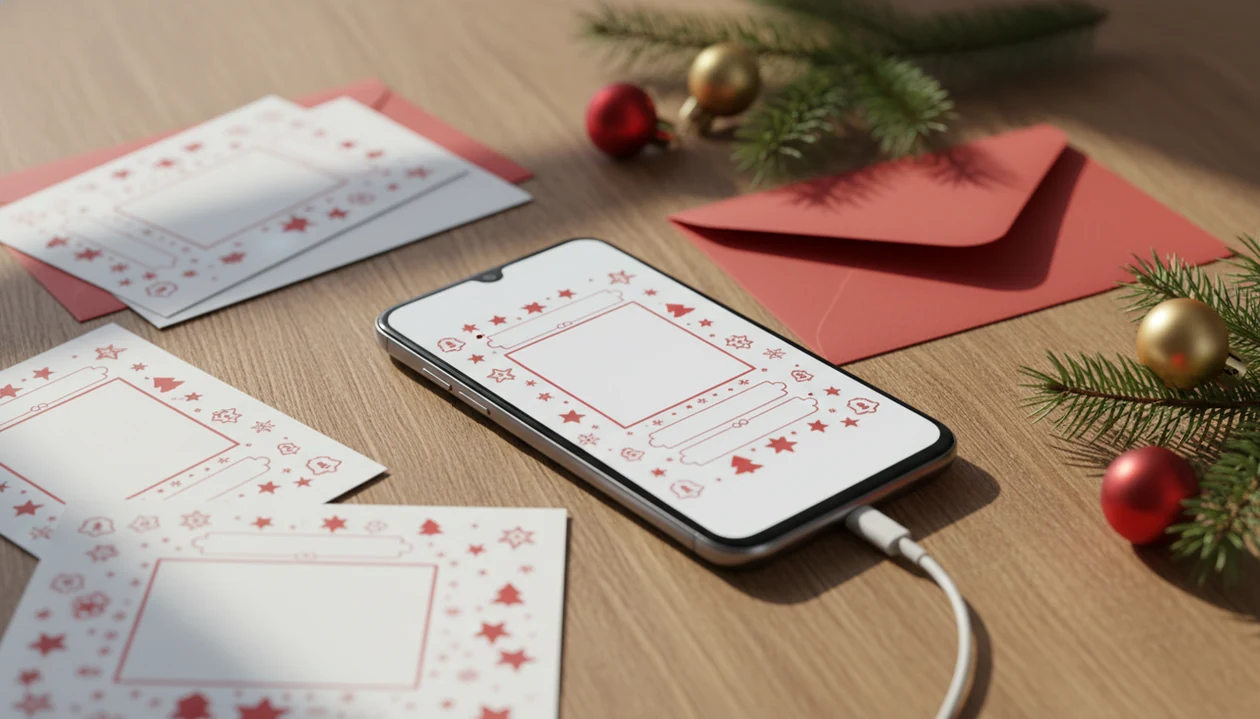
If you want to know how to make Christmas card on Android, start with a clear gallery photo, open a Christmas card app or photo editor, choose a holiday template, add your greeting, then export the finished card for printing or sharing. This Android-only workflow keeps everything on your phone, from photo selection to a printable or digital card file.
> A good Android Christmas card workflow turns one clear photo into a printable card, a textable greeting, or both without needing a desktop editor.
- Start with a clear Android gallery photo, preferably a bright portrait with space around the faces for text and card borders.
- Use a Christmas card app or photo editor with templates, AI holiday styles, text tools, and high-resolution export.
- Export one version for print and a separate vertical or square version for texting, Instagram, Facebook, or WhatsApp.
Christmas Card on Android: What You Need Before You Start
You need an Android phone, a usable photo, a card-making app, and a clear output plan before you start. Decide early whether you are making a printable card, a digital greeting, or both.
- An updated Android gallery or photo app helps you find originals instead of blurry screenshots.
- One to five sharp photos are enough; bright faces matter more than matching sweaters.
- A Christmas card app, photo editor, or AI card maker should include templates, text tools, and export controls.
- A printable version needs size and resolution checks before you send it to Walgreens, CVS, or a home printer.
- A digital version should fit the app where it will be sent, such as text, WhatsApp, Instagram, or email.
Smartphone-only creative workflows are common now, and many families really do finish the card at 9:47 p.m. with 18% battery left.
How Christmas Card Apps on Android Work
A Christmas card app on Android works by layering your photo, template, text, stickers, frames, and export settings into one finished image or document. In plain terms, the app stacks editable pieces until you save a flat JPG, PNG, PDF, MP4, or GIF.
AI card tools may use image segmentation, which separates people from the background. They can add snow, swap in warm lights, create a Santa scene, or turn a phone photo into a watercolor-style portrait. However, AI still needs a human check. We have seen gold script become hard to read and a pet’s antlers slide sideways in previews.
Generative AI has become a major creative-tool trend, but it is still a helper, not the final proofreader. Good Christmas card maker and holiday greeting guides help families turn phone photos into printable cards, digital greetings, and festive portraits using AI styles, not a replacement for checking faces, names, dates, and print size.
How to Use Android Photos to Make a Christmas Card
To make holiday card on Android, use a simple photo-to-card workflow: choose the format, place the photo, add wording, preview, and export. For most families, one strong phone photo is often easier than a collage because it leaves more room for readable text.
- Open a Christmas card maker or photo editor on your Android phone.
- Choose a holiday template or blank card size before importing photos.
- Import a gallery photo and crop it so faces stay inside the safe area.
- Add greeting text, family name, year, stickers, or a festive frame.
- Preview the holiday card draft full screen and check the crop twice.
- Export the correct file type for print, texting, email, or social sharing.
If you are rushing after a missed post office cutoff notice, a last minute Christmas card maker workflow can keep the steps tighter.
Step 1: Choose an Android Christmas Card Template or AI Style
Choose the destination before you choose the design. A printer, Instagram Story, Facebook post, email attachment, and WhatsApp message all favor different shapes.
| Format | Good for | Watch for |
|---|---|---|
| Classic photo card | 5x7 prints and mailed cards | Keep faces away from trim edges |
| Folded card | Longer notes and family updates | Proof both inside and outside panels |
| Postcard | Simple print orders | Leave room for address or back design |
| Square social post | Instagram, Facebook, group texts | Tiny text can disappear on phones |
| Vertical story | Stories, Reels covers, WhatsApp status | Crop may cut tall family photos |
Use AI styles when the original photo is plain but clear. Snowy portrait, cozy lights, Santa scene, watercolor, and cartoon looks can help. Free apps may add watermarks, limit export size, or lock the nicest templates.
Step 2: Add Android Gallery Photos to a Holiday Card Layout
Pick bright, sharp Android gallery photos where faces are not pressed against the edge. Yellow living-room light is fixable; a cropped forehead usually is not.
A single hero image makes the cleanest card. Multiple photos work better for a family update style, especially if one child is looking away in every group shot. It happens. Use safe margins so print trimming does not cut off heads, pets, or the family name.
Before placing the image, use Android photo tools for brightness, background blur, or object removal. We usually check for a dog leash in the corner, one red-eye flash, and laundry that somehow made it into the frame. You can also edit the picture in an AI photo app first, then drop the polished result into a separate card maker such as Canva, Picsart, Photoleap, or XmasCard.
Step 3: Write Christmas Card Wording on Android
Keep Christmas card wording short enough to read on a phone and on paper. Long messages belong inside a folded card, email note, or separate family update.
- Classic greeting: “Merry Christmas” works when the photo already feels personal.
- Inclusive greeting: “Happy Holidays” fits mixed recipient lists.
- Warm short line: “Peace and Joy” leaves room for a large photo.
- Family signoff: “Love from the Rivera Family, 2025” is clear and printable.
Place text over quiet space, not over faces, ornaments, or bright fireplace glow. High-contrast white, dark green, navy, or deep red usually reads better than pale gold on beige. For more examples, keep a note of reusable lines or use Christmas card wording ideas before next December.
Short Android-friendly wording examples
Merry Christmas. Happy Holidays. Peace and Joy. Love from our family to yours. Wishing you a bright New Year.
Step 4: Export a Printable Christmas Card From Android
Can you print a Christmas card made on Android? Yes, mobile-made cards can print well when the file size, dimensions, bleed, and resolution match the printer’s requirements.
Export a high-resolution JPG, PNG, or PDF if the app offers it. Use the exact size needed for the job, such as postcard, 5x7, or folded card. If a print service provides trim and safe-area guides, follow those over any generic template advice.
Do one test print before ordering a stack. Phone screens look brighter than cardstock, and a home inkjet tray can pull fresh cardstock slightly crooked. Check the crop, small text, and border spacing under normal room light. A printable Android card usually works best when the photo is original quality, not a screenshot saved from a chat thread.
Step 5: Share a Digital Holiday Card From Android
A digital holiday card from Android should be exported separately from the print version. Square and vertical files usually work better for phones than a horizontal 5x7 print layout.
- Use JPG or PNG for static digital greetings.
- Use MP4 or GIF only when the app and sharing platform support animation.
- Send through text, WhatsApp, email, Instagram Stories, Facebook, or a Google Photos link.
- Pew Research Center reports that majorities of U.S. adults use platforms such as YouTube, Facebook, Instagram, and messaging-adjacent social apps, which is why square and vertical card exports matter for digital sharing: https://www.pewresearch.org/internet/fact-sheet/social-media/
Save a backup before posting. A Downloads folder full of duplicates is annoying, but losing final-final-card.pdf is worse. If you mainly want a sendable greeting, a digital Christmas greeting card format is easier than forcing a print design into a phone screen.
Common Android Photo Card Mistakes to Fix Before Sending
Most Android photo card mistakes are visible if you preview the card full screen and zoom in once. The fastest fixes are replacing screenshots, moving text, checking AI details, and exporting the right shape.
Avoid using a low-resolution screenshot when the original photo is still in your gallery. Keep faces away from the trim edge, especially on 5x7 cards. Increase font size if you have to squint on your own phone.
AI artifacts deserve a slow look. Check hands, faces, pets, ornaments, religious symbols, and background text. Also watch for free-app watermarks hiding near a corner. If the card is for Instagram, do not export only a postcard shape. If it is for print, do not rely on a vertical Story file. For app comparisons, our best digital Christmas card app guide focuses on export and sharing details.
Limitations
Making a Christmas card only on Android is convenient, but it has real tradeoffs. Proof more carefully when the card is being printed or sent to a large recipient list.
- Small screens make precise alignment and fine typography harder than desktop editing.
- Some free apps restrict high-resolution export, add watermarks, or lock templates behind subscriptions.
- AI Christmas styles can distort faces, hands, pets, text, ornaments, or religious symbols.
- Phone screen color may not match home printer or professional print output.
- Large print files can be slow on older Android phones or phones with limited storage.
- Folded cards and multi-page layouts are harder to proof on mobile.
- Privacy matters when uploading family photos to AI or cloud-based card apps.
Read the upload, storage, and deletion settings before adding children’s photos. Not exciting. Still important.
FAQ
Can I make Christmas cards on an Android phone without a computer?
Yes. An Android phone can create printable and digital Christmas cards if the app supports photo import, text editing, templates, and export.
What Android apps can I use to make a Christmas card?
You can use Christmas card makers, Canva-style editors, AI photo apps, or tools such as XmasCard. Choose one that exports without unwanted watermarks.
How do I use photos from my Android gallery in a Christmas card?
Open the card app, choose a template, tap photo import, and select the original image from your gallery. Avoid screenshots because they often export at lower quality.
Can I print a Christmas card I made on Android?
Yes. Export a high-resolution JPG, PNG, or PDF, then check size, bleed, trim, and color with a test print.
What size should an Android Christmas card be?
Common print sizes include 5x7, postcard, and folded card formats. Digital versions often work better as square posts or vertical Story-style images.
Can AI turn my Android photo into a holiday card?
Yes. AI can add snow, festive lighting, illustrated effects, or holiday backgrounds, but you should review faces, hands, pets, and text before sending.
How do I remove a watermark from a Christmas card app?
You usually need a paid export, a watermark-free template, or a different app. Do not crop a watermark if it damages the card size or print layout.
How do I text a Christmas card from my Android phone?
Export a mobile-friendly JPG or PNG, open your messaging app, attach the image, and send it by SMS, WhatsApp, or another chat app. Use a square or vertical version if the card is mainly for phone screens.