
Check If Your Photo Is Ready For Christmas Card Printing
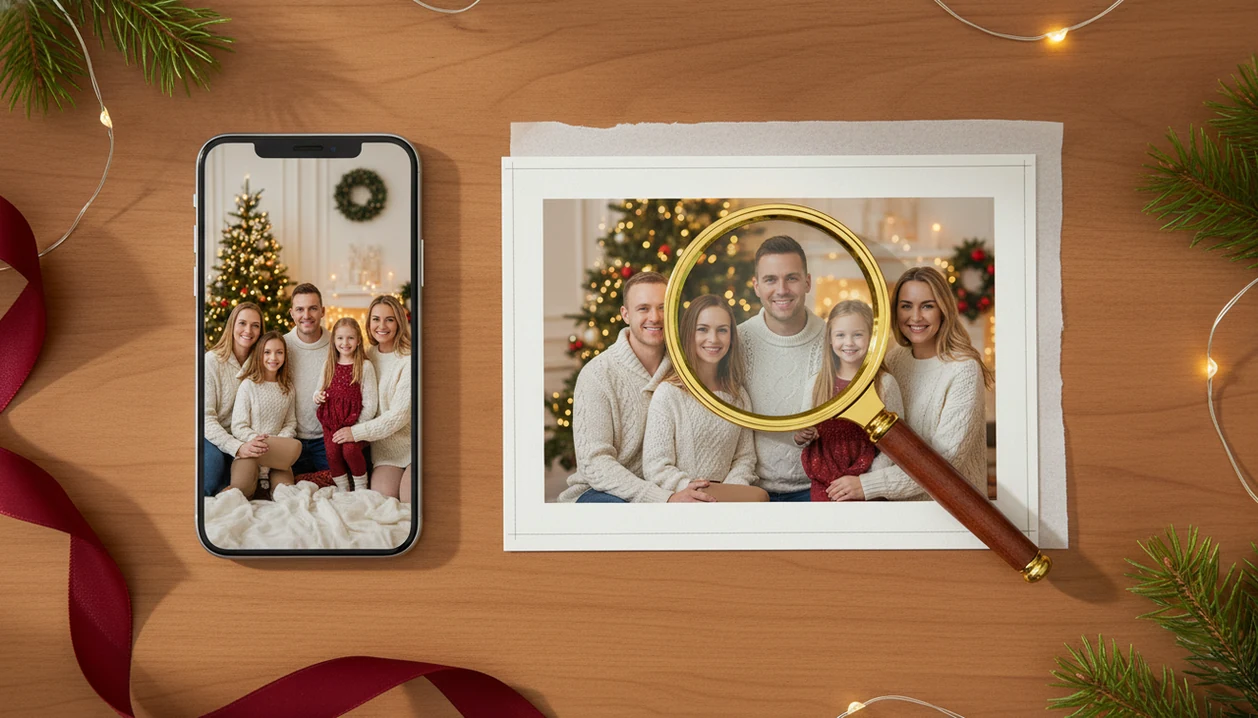
A phone picture is usually ready if it is sharp at print size, bright on faces, safely cropped for the card template, and exported as a high-quality JPG or PNG. Use this check photo ready for Christmas card guide before ordering so your printed or digital card does not look blurry, dark, or awkwardly trimmed.
Definition: XmasCard is a Christmas card app that turns one photo into printable Christmas cards and holiday greetings for families, couples, and small businesses.
TL;DR
- Aim for enough pixels to print near 300 pixels per inch at the final card photo size.
- Zoom in on faces, check lighting, and preview the exact crop before placing text or ordering prints.
- Use light edits or AI enhancements for exposure and color, but re-shoot photos with severe blur, tiny faces, or heavy noise.
Christmas Card Photo Check At A Glance
A Christmas card photo passes the quick check when faces are sharp, lighting is bright and even, resolution fits the print size, the crop protects important details, and the export is clean. A photo can look fine on a phone but still print soft because small screens hide blur, compression, and missed focus.
Phones matter here. In 2023, 85% of U.S. adults owned a smartphone, according to Pew Research Center (https://www.pewresearch.org/internet/fact-sheet/mobile/), and two-thirds reported ever sending greeting cards, according to the Greeting Card Association (https://www.greetingcard.org/), so many cards now start with a phone photo and end as a printed keepsake.
Use the same check for family photos, couple photos, pet cards, small business greetings, and last-minute digital cards. If the teenager is half behind bangs or the dog leash sits in the corner, decide before you order.
Small flaws grow on paper.
Five Facts For Christmas Card Photo Printing
- 300 ppi is the common sharp-print target. High-quality photo prints often aim for about 300 pixels per inch at the final printed photo size.
- Most modern phone originals have enough pixels for small cards. Consumer cameras, including phones, often capture 5 to 12 megapixels or more, but heavy crops and compressed copies can ruin that advantage.
- Light matters as much as pixels. Bright, even, natural-looking light usually prints better than yellow living-room light, dim rooms, or harsh flash.
- The template crop can make or break the card. Protect heads, hands, pets, logos, and key decorations from trim lines and text zones.
- The card tone should match the photo. A cozy couch picture, formal portrait, funny pet shot, festive scarf photo, and business greeting each need a different layout mood.
For most families, the original phone file is often better than a downloaded copy because it preserves more detail for printing.
How A Christmas Card Photo Check Works
A Christmas card photo check is the process of testing one image for usable pixels, face clarity, lighting, crop safety, layout fit, and clean export before printing or sharing. In plain terms, you are asking whether the photo can survive being enlarged, trimmed, decorated, and saved.
The workflow is simple: inspect the original file, calculate the usable print size, test the crop against the template, review every face, then export without extra compression. Print readiness depends on pixels, viewing distance, compression, lighting, motion blur, and the card layout.
AI tools can lift exposure, correct white balance, soften a distracting background, and help with framing. They cannot fully restore detail that was never captured. A card editor can help preview, style, and adapt one phone photo into a holiday greeting, but the base image still has to carry the card.
Good Christmas card maker and holiday greeting guides help families turn phone photos into printable cards, digital greetings, and festive portraits using AI styles, not rescue every blurry file after the fact.
Six Steps To Use A Christmas Card Photo Check
Use this checklist before you build the holiday card draft, especially if you are working at 9:47 p.m. with an 18% phone battery.
- Open the original photo from your camera roll, not a screenshot, social download, or messaging-app copy.
- Zoom into every face and check children, pets, and people in the back row for blur or closed eyes.
- Compare the pixel size with the card photo area; use a Christmas card resolution for printing guide if the numbers look unclear.
- Preview the template crop in portrait, landscape, or square format, and check the card on a larger screen when possible.
- Apply modest edits for exposure, color, red-eye, and slight sharpening, then review the result again.
- Choose the next action: proceed, edit more, switch templates, or re-shoot before ordering.
Reset the plan if needed.
Phone Photo Resolution For Christmas Card Printing
“What resolution does my Christmas card photo need?” A sharp print commonly targets about 300 pixels per inch, which means each printed inch uses roughly 300 image pixels; Adobe’s print-resolution guidance also uses 300 ppi as a common high-quality target (https://www.adobe.com/creativecloud/photography/discover/photo-resolution.html). More pixels give the printer more real detail to place on paper.
A 4x6 photo area needs about 1200x1800 pixels at 300 ppi. A 5x7 photo area needs about 1500x2100 pixels. Those are photo-area examples, not always the full card size, so check the actual frame in your design.
Screenshots, social media downloads, messaging-app files, and heavy crops may be too small even if the original phone camera was good. The full Christmas card size for printing question matters because a small inset photo needs fewer pixels than a full-bleed front.
For one-photo cards, resolution usually works best when you keep the original file and avoid deep cropping.
Face Sharpness And Lighting For A Christmas Card Photo Check
Zoom to 100% or pinch in on every face before you decide a photo is ready. Check the toddler looking away, the person at the back of the group, the pet’s eyes, and anyone sitting near the edge of the frame.
Failure signs are easy to miss on a phone preview. Look for motion blur, smeared skin detail, red-eye flash, harsh shadows, heavy grain, and faces hidden by backlight. One red-eye flash can feel minor on screen and oddly loud on glossy paper.
Bright window light, outdoor shade, or evenly lit indoor scenes usually print better than direct flash or dim rooms. Small cards can forgive a messy toy in the background. They do not forgive dark, blurry faces.
If only the background is flawed, edit. If the faces are soft, choose another photo.
Christmas Card Crop, Safe Margins, And Template Fit
A good photo can fail if the card template cuts into the people, pets, or decorations that make it work. Test portrait, landscape, and square layouts before you commit, because each shape removes different parts of the frame.
Leave visible space around heads, hands, pet ears, business logos, tree toppers, and important background details. Text areas need breathing room too. Gold script over a busy sweater may look festive in the editor and unreadable in print.
Close selfies often fit vertical cards better. Wide group shots usually need landscape templates or smaller photo windows. If the same image appears on the front and back, preview both placements.
A printable Christmas card maker should let you check the crop before export, not after the card stack is already in your hand.
AI Edits For A Christmas Card Photo Without Fake Results
AI edits are most useful when the base photo is clear but imperfect. They are risky when faces are tiny, severely blurred, over-compressed, or missing real detail.
| Edit choice | Good use | Warning sign |
|---|---|---|
| Exposure lift | Brighten slightly dark faces | Gray skin or blown-out windows |
| White balance | Reduce yellow indoor color | Unnatural blue snow or orange faces |
| Background cleanup | Remove small distractions | Warped furniture or strange edges |
| Gentle sharpening | Add clarity to a mostly sharp file | Crunchy noise and hard outlines |
| Festive styling | Add a seasonal portrait look | Plastic skin or distorted smiles |
A Christmas card editor can preview festive portraits and card styles from one photo while keeping the result aimed at print or sharing. Still, compare the edited version with the original. The matching red scarf should look like clothing, not a sticker.
Christmas Card Export Format, Paper Finish, And Print Preview
Export the final card or photo as a high-quality JPG or PNG, following the printer or card app requirements. Do not upload the tiny image saved from a family group chat at breakfast if the original is still in Photos.
Matte paper can soften glare and hide fingerprints. Glossy paper may make sharp photos look crisp, but it can also reveal noise, red-eye, and color problems more strongly. Fresh cardstock warm from the printer feels reassuring until you notice the home inkjet tray pulled it slightly crooked.
Preview the card on a larger screen when possible. Check text over photo areas, spelling, margins, and the final file name. A PDF named final-final-card.pdf is funny once. After that, save a backup and keep the clean export.
Online ordering is common during the holidays; a 2023 survey found 76% of U.S. consumers planned to buy holiday gifts online, so digital proofing before purchase is worth the extra minute.
Limitations
A Christmas card photo check prevents many mistakes, but it cannot fix every image. Be honest before you pay for prints.
- A very low-resolution, heavily compressed, or screenshot-only photo may not become print-ready.
- Severe motion blur cannot be reliably fixed by sharpening or AI.
- Faces that are too small in a group photo may print without enough detail.
- Extreme low light, heavy noise, backlight, or direct flash may remain visible in print.
- Older front-facing phone cameras may limit usable print size compared with rear cameras.
- Screen color and brightness do not guarantee an exact match to printed ink and paper.
- Complex mixed-light group shots may still look uneven after careful edits.
If you are unsure, print one test copy at Walgreens, CVS, or home before ordering a full set. For layout choice, a family Christmas card app can help, but the photo still needs real detail.
FAQ
Is my photo ready for a Christmas card?
Your photo is ready if faces are sharp, lighting is clear, resolution fits the print size, the crop leaves safe space, and the export is high quality. If one of those fails, edit, change templates, or choose another photo.
What resolution does a Christmas card photo need?
A common target is 300 pixels per inch at the final printed photo size. A 4x6 photo area needs about 1200x1800 pixels, and a 5x7 photo area needs about 1500x2100 pixels.
Can phone photos print well on Christmas cards?
Yes, most modern phone originals can print well on Christmas cards if they are not heavily cropped, compressed, dark, or blurry. Use the original file from the phone whenever possible.
Should I use JPG or PNG for a Christmas card photo?
Use a high-quality JPG or PNG according to the printer or card app requirements. Avoid low-quality copies from texts, social media, screenshots, or repeated downloads.
Why does my Christmas card photo look blurry?
Common causes include motion blur, missed focus, low resolution, digital zoom, compression, and poor lighting. A photo can look acceptable on a phone screen and still print soft.
Can AI fix a blurry Christmas card photo?
AI can improve mild softness, exposure, color, and framing. It cannot reliably recreate severe missing detail in faces, pets, or text.
How much margin should I leave around people in a Christmas card photo?
Leave visible space around heads, hands, pets, logos, and the edges of the frame. This protects the photo from trim, bleed, and text placement.
Are screenshots good enough for Christmas cards?
Screenshots are usually lower quality than original photo files and should be avoided for printing. Use the original camera image for the cleanest Christmas card result.