
App To Help Make Christmas Cards From One Photo
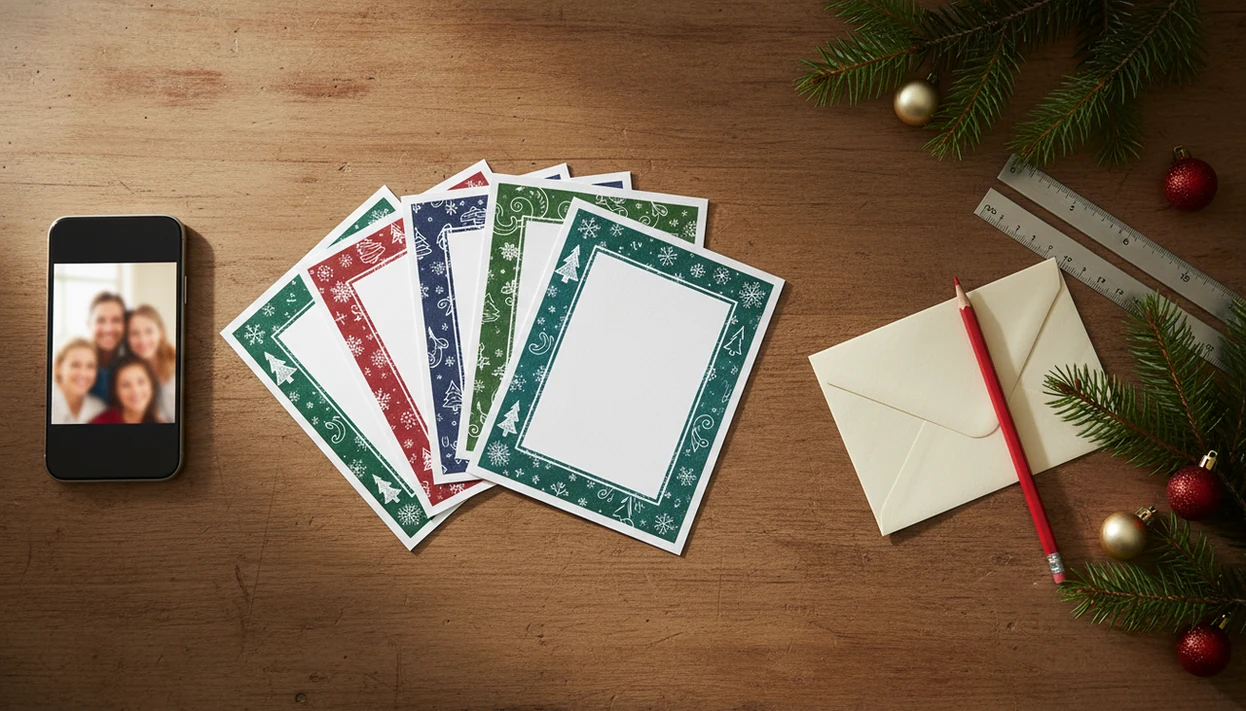
The easiest app to help make Christmas cards is one that turns a clear phone photo into a festive, print-ready or shareable card with AI styles, editable wording, and export checks. For families, couples, small businesses, and last-minute senders, the useful test is whether the card can be checked for crop, wording, privacy, and print size before it is sent.
Definition: XmasCard is a Christmas card app that turns one photo into printable Christmas cards and holiday greetings for families, couples, and small businesses.
TL;DR
- Start with one clear, well-lit phone photo where faces are visible and not heavily shadowed.
- Choose a Christmas style, add your greeting, then check crop, text margins, and export size before printing or sharing.
- AI card apps save time, but faces, hands, pets, and tiny details may need a second generation or manual adjustment.
What a Christmas Card Helper App Actually Does
A Christmas card helper app combines photo upload, AI styling, card layout, greeting text, and export in one guided flow. It is meant for people who want help making Christmas cards without opening design software.
A generic template editor starts with a blank-ish design and asks you to arrange parts. A photo filter app changes the look of an image but may not build a real card. A Christmas card helper app should do both jobs: make the photo feel seasonal, then place it into a printable or digital greeting.
Good Christmas card maker and holiday greeting guides that help families turn phone photos into printable cards, digital greetings, and festive portraits using AI styles deliver finished card files, not a full replacement for checking names, crops, print size, and mailing windows.
Phone Photos in a Christmas Card Helper App
Phone photos fit Christmas card apps because most families already take, store, and share their pictures from a phone. The camera roll is usually where the usable card photo lives, even if the toddler is looking away or the dog leash is still in the corner.
- Pew Research Center’s Mobile Fact Sheet reports that 91% of U.S. adults own a smartphone: https://www.pewresearch.org/internet/fact-sheet/mobile/
- Pew Research Center reported that 90% of U.S. adults celebrate Christmas, which explains why holiday-card use remains broad: https://www.pewresearch.org/religion/2013/12/18/celebrating-christmas-and-the-holidays-then-and-now/
- The USPS holiday shipping and mailing deadlines page is the source to check before assuming a printed card can still arrive by Christmas: https://www.usps.com/holiday/holiday-shipping-dates.htm
- A mobile-first card flow matches real behavior: pick the phone photo, make the holiday card draft, then send or print.
That is why an app that makes Christmas cards from photos is often easier than starting from a desktop file folder.
How a Christmas Card Helper App Turns One Photo Into a Card
A Christmas card helper app works by separating image transformation from card composition. First, the app uploads your photo, detects the main subject or faces, applies an AI style, then places the result into a card layout with text and export settings.
The AI part may use image embeddings, which are numerical summaries of what appears in the photo. In plain terms, the app is trying to understand where the faces, pets, background, and empty space are. The layout part then decides where the greeting, year, border, and printable version should go.
Input quality still matters. Yellow living-room light, red-eye flash, and far-away faces can all confuse the result. Aspect ratio matters too; a tall portrait may crop badly in a wide card. Internet connection also affects upload and generation speed, especially during that 9:47 p.m. kitchen-table card session when the phone battery is at 18%.
Photo, Message, and Export Prep Before Christmas Card Creation
What should you prepare before using a Christmas card helper app? Prepare one bright, sharp photo, the exact greeting text, and the export goal before you start.
Choose a photo where faces are visible, eyes face the camera, and there is extra space around the subject. Tight crops look fine on a phone but can cut hair, antlers, or shoulders after the card border is added. We have seen pet antlers slip sideways in a cute photo that still needed a wider crop.
Decide early whether the card is for home printing, professional printing, email, text, or social posting. Then gather the family name, year, holiday greeting, optional return address, or business name. For iPhone-specific steps, the Christmas card app for iPhone guide covers the share sheet and photo access checks.
5 Steps To Use a Christmas Card Helper App
Use a Christmas card helper app by moving in order: photo, style, wording, layout check, then export. For last-minute cards, this sequence avoids the Downloads folder full of duplicate files named almost the same thing.
- Upload one clear phone photo with faces visible and enough background for cropping.
- Choose a Christmas style, such as cozy winter, cartoon, elegant, funny, or small business.
- Edit the greeting, family name, year, and any address or business line.
- Check the crop, face details, text margins, borders, and printable card size.
- Export the card as a printable file, downloadable image, email attachment, or textable greeting.
For most families, one-photo card creation is often faster than building a template from scratch because the workflow handles both style and layout. Broad editors such as Canva and Picsart can help too, but the workflow should still end with your own crop and wording check.
Evidence Behind the Christmas Card App Workflow
The workflow is based on a simple reality: most card photos start on phones, but finished cards still have to survive printing, privacy review, and mailing deadlines. The evidence supports a phone-first process with human checks before export.
- Start on mobile because smartphone ownership and mobile photo habits make the camera roll the natural place to choose a family picture.
- Plan mailing time against USPS holiday deadlines, especially if you need printing, envelopes, stamps, or delivery before Christmas week.
- Check resolution, bleed, and safe margins against the printer or photo lab’s file guidance, since a nice preview can still trim text or soften faces.
- Review privacy terms before uploading, looking for how photos are stored, deleted, shared, and whether they may be used for AI training.
- Treat speed, duplicate-file cleanup, style switching, and final proofing advice as workflow testing claims, not outside research. Those come from using the card-making sequence and seeing where people usually lose time.
That is why the recommended order stays practical: pick the photo, make the draft, proof the details, then export only when the file fits the send or print plan.
7 Christmas Card App Styles for Family Photos
Choose a Christmas card style that supports the photo you already have. Forcing a full snowy scene onto a dark, close-up selfie can look strange.
| Style | Works well for | Watch for |
|---|---|---|
| Cozy winter | Close-up couples, families, pets | Snow effects covering faces |
| Cute cartoon | Kids, pets, playful portraits | Changed facial resemblance |
| Vintage | Formal portraits, older family photos | Low contrast text |
| Elegant | Couples, businesses, simple family shots | Script that is hard to read |
| Funny | Pets, silly poses, casual groups | Jokes that may not fit all recipients |
| Matching pajamas | Full-body or couch group photos | Cropped feet or sleeves |
| Small business | Staff photos, storefront images | Logo and address spacing |
Check the gold script before exporting. Pretty letters are useless if Grandma has to zoom in. If you want a dedicated one-photo AI workflow, an AI Christmas card from one photo can be a better fit than a broad editor.
Print Checks for Christmas Card Files
A print-ready Christmas card file needs more than a nice screen preview. Screen-ready exports are built for phones and email; print-ready exports need enough resolution, correct size, and safe spacing.
- Resolution: Use the highest export available so faces and tiny text do not look soft.
- Card size: Confirm the intended size, such as 4x6, 5x7, or square, before ordering.
- Crop and aspect ratio: Make sure the photo shape matches the card shape.
- Bleed: Keep background color or image beyond the trim edge when the printer requires it.
- Safe margins: Keep names, dates, and greetings away from the edge.
Before printing, zoom in on faces, borders, and small type. A home inkjet tray can pull cardstock slightly crooked, so leave more margin than you think. A free Christmas card app may be fine for sharing, but check whether high-resolution exports require an upgrade.
Common Christmas Card App Mistakes
The most common Christmas card app mistake is expecting a weak photo to become a clean printed card. Blurry photos, dark rooms, far-away faces, crowded backgrounds, and overcropping usually show up even more after styling.
AI is helpful, but it is not a proofreader or a family historian. It may change a smile, soften a face too much, or turn a cat tail crossing the portrait into something odd. Regenerate when the first version looks off. Switch styles if the scene feels forced.
Also check the design rights. Do not upload or recreate copyrighted characters, logos, or artwork unless you have permission or the app provides licensed assets. Templates are not always fixed, either. Change the wording, colors, and layout when the default version does not fit your family, church group, classroom, or shop.
Limitations
Christmas card helper apps can save time, but they do not remove every quality, privacy, or print risk. Check the card like you would check an address label before dropping it in the mail.
- AI may distort faces, hands, teeth, glasses, pets, ornaments, or small background details.
- A generated portrait may look festive but not closely resemble the real person.
- Low-light, blurry, compressed, or heavily cropped photos usually produce weaker results.
- Most AI card tools need an internet connection for upload, generation, and export.
- Privacy rules vary, so read how the app stores, deletes, shares, or trains on uploaded photos.
- Some apps limit print resolution, file format, styles, or watermark removal on free plans.
- Print shops may have their own bleed, margin, and file requirements.
- Last-minute digital greetings can send fast, but mailed cards still depend on USPS cutoffs and local print timing.
Save a backup. The PDF named final-final-card.pdf is funny until it is the only file you can find.
FAQ
What app makes Christmas cards from photos?
Christmas card maker apps turn photos and greetings into printable or digital holiday cards. XmasCard, Canva, Picsart, and similar tools can all help, depending on whether you want AI styling or template editing.
Can I make a Christmas card with one photo?
Yes, one clear photo is enough for many AI Christmas card apps. A front-facing photo with good light usually gives the strongest result.
Are Christmas card apps free?
Many Christmas card apps offer free creation with limits. Common limits include watermarks, fewer styles, lower-resolution downloads, or paid print exports.
Can AI make family Christmas cards?
AI can style family photos into winter, cartoon, elegant, or funny card scenes. It may also create face, hand, or pet errors, so review the result closely.
What photo works best for a Christmas card app?
Use a sharp, bright photo where faces are visible and not heavily shadowed. Leave space around people so the app can crop the card safely.
Can I print a Christmas card made in an app?
Yes, if the export has enough resolution, the right size, safe margins, and a printable file format. Check the print preview before ordering or using a kiosk.
Can I send Christmas cards digitally?
Yes, most card apps let you send a downloadable image by text, email, or social media. Some also create files sized for digital greeting sharing.
Are uploaded photos private in Christmas card apps?
Privacy depends on the app policy, not the card style. Check storage, deletion, sharing, and AI training terms before uploading family photos.