
How To Make a Christmas Card on iPhone From Photos
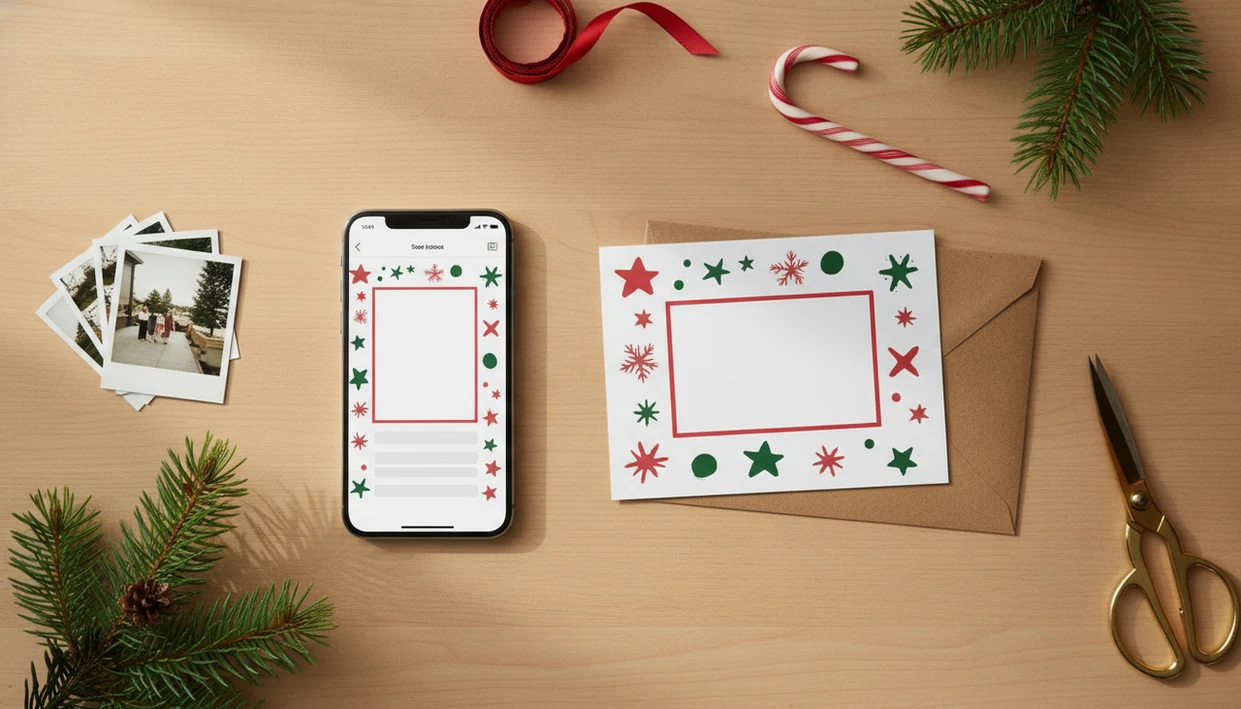
To learn how to make Christmas card on iPhone, start with a holiday card app or mobile editor, choose a Christmas template, add a camera roll photo, personalize the message, then export it as a JPG, PNG, or PDF for texting, posting, emailing, or printing.
> XmasCard is a Christmas card app that turns one photo into printable Christmas cards and holiday greetings for families, couples, and small businesses.
- Use a Christmas card template instead of designing from a blank canvas on your iPhone.
- Choose a clear camera roll photo, keep faces away from edges, and make the greeting readable on a small screen.
- Export as JPG or PNG for digital sharing, or PDF/high-resolution image for printing.
Christmas Card on iPhone Basics for Photo Cards
A Christmas card on iPhone is usually made by combining four parts: a template, a camera roll photo, custom wording, and an export file. You can use an app or a browser editor, and free options often work for a simple card.
A digital e-card is made for Messages, email, social apps, or a saved image. A printable photo card needs more attention to resolution, margins, and file type. That matters when the home inkjet tray pulls cardstock slightly crooked.
Stat callout: Pew Research reported that 90% of U.S. adults owned a smartphone in 2024 (https://www.pewresearch.org/internet/fact-sheet/mobile/), which helps explain why phone-first holiday card making feels normal now. Most families already have the photo, the names, and the share button in one place.
Good Christmas card maker and holiday greeting guides help families turn phone photos into printable cards, digital greetings, and festive portraits using AI styles, not a confusing design project that starts from nothing.
At-a-Glance iPhone Photo Card Tutorial
The fastest iPhone photo card tutorial is: choose an app or editor, select a template, add your photo, edit the text, check readability, then export. Templates are the quickest path because the spacing and greeting hierarchy are already built.
For families rushing before dinner, a last minute Christmas card maker workflow works better than a blank canvas because it reduces choices on a small screen.
| Card type | Use it for | Best export | Watch for |
|---|---|---|---|
| Digital Christmas card | Messages, email, Instagram, Facebook | JPG or PNG | Text must read at phone size |
| Printable photo card | Home printing, CVS, Walgreens, local print shop | PDF or high-resolution JPG/PNG | Margins, crop, and resolution matter |
| Hybrid card | Text now, print later | Save both image and PDF if available | Keep an editable draft |
For most iPhone users, a template-based card is easier than manual design because the layout already protects the photo, greeting, and signature.
How Mobile Christmas Card Editors Work on iPhone
Mobile Christmas card editors work by placing photos, text layers, graphics, fonts, and backgrounds inside a fixed card layout. The app keeps each layer editable until you export the finished design.
Templates protect spacing, visual hierarchy, and readability better than blank designs. In plain terms, the greeting sits where it belongs, the photo has a safe area, and the family name doesn't float into the border.
AI styles may restyle a photo into a Santa scene, snowy portrait, or illustrated holiday look. But the result still depends on the source photo. A blurry tree-farm selfie won't suddenly have sharp faces at full size.
Export settings turn the editable layout into a shareable image or printable PDF. That is the moment your holiday card draft becomes something you can save to Photos, drop into Files, or send through the iPhone share sheet.
How To Use an iPhone Christmas Card Maker
Use an iPhone Christmas card maker by starting with the photo you already have, then moving through template, text, preview, and export. Apps such as Canva, Adobe Express, and Picsart can handle this kind of phone-only card workflow.
- Open an app or browser editor on your iPhone and start a new holiday card project.
- Choose a Christmas template with the right shape for texting, posting, or printing.
- Add a photo from your camera roll, then adjust crop and zoom before adding text.
- Edit the message with your greeting, names, year, and any short family update.
- Preview on your phone in Photos or the editor, checking that the text reads at normal size.
- Export and share as JPG, PNG, or PDF through Photos, Files, Messages, Mail, or AirDrop.
At 9:47 p.m., with the phone battery at 18%, fewer taps matter. Save a backup before you start experimenting.
Best iPhone Photo Requirements Before You Start
The best iPhone photo for a Christmas card is bright, sharp, and roomy enough to crop without cutting off faces. Printable cards need higher resolution than digital greetings because paper exposes blur fast.
- Use bright, natural-looking light. Yellow living-room light can work, but check skin tones before exporting.
- Keep faces away from the edges. Cropping can remove a toddler, a pet ear, or the top of a Santa hat.
- Match the photo to the layout. Portrait photos fit tall cards; landscape photos fit wide family-photo designs.
- Avoid weak source files. Screenshots, tiny downloads, heavy filters, and blurry images usually print poorly.
- Zoom in before choosing. A dog leash in the corner is easier to remove before the card is finished.
For printable cards, a clear original photo usually works better than a heavily edited image because print makes softness and compression more visible.
Step-by-Step Christmas Card Design on iPhone
How do you design a Christmas card on iPhone without making it look crowded? Start from a holiday template with the correct orientation and size, add one strong camera roll photo, then keep the greeting short enough to read on a phone.
Choose a Christmas Template
Pick a vertical, square, or horizontal template based on where the card will go. A square design is easy for social sharing, while a 5x7-style layout fits many printable photo cards.
Add and Crop the iPhone Photo
Add the photo from your camera roll, then adjust crop, zoom, and placement. Check the crop at full zoom if you are using a couple photo with soft bokeh lights.
Edit the Holiday Message
Use short wording such as “Merry Christmas from the Parkers,” “Peace and joy, 2026,” or “Warm holiday wishes.” More Christmas card wording ideas can help when the screen feels too small for a full note.
Two fonts is plenty. Maybe one.
Digital and Printable Christmas Card Export Settings
A Christmas card can be both digital and printable if you export the right files. JPG and PNG are usually right for Messages, email, social posts, and saved images; PDF or high-resolution image exports are better for printing when available.
For iPhone-specific mechanics, Apple documents sharing photos from the Photos app through the share sheet (https://support.apple.com/guide/iphone/share-photos-and-videos-iphf28f17237/ios) and printing from iPhone with AirPrint (https://support.apple.com/en-us/HT201387), so preview the saved file before sending or printing.
| Export format | Best for | iPhone destination | Final check |
|---|---|---|---|
| JPG | Texting, email, social sharing | Photos, Messages, Mail | Make sure small text stays readable |
| PNG | Crisp digital graphics | Photos, Files, share sheet | Check file size before emailing |
| Printing or saving a layout | Files, AirDrop, print menu | Check margins and page preview | |
| High-resolution image | Photo kiosk or home print | Photos, Files | Confirm crop and resolution |
If you want a greeting made mainly for texting, a digital Christmas greeting card export keeps the process simple. For print, open the file once more before sending it out. Fresh cardstock is less forgiving than a screen.
Common iPhone Christmas Card Mistakes
Most iPhone Christmas card mistakes happen after the design looks “done” but before export. The small screen hides errors, especially when you are swiping through a Downloads folder full of duplicates.
- Text is too small. If the greeting is hard to read in Messages, enlarge it or shorten it.
- Faces are too close to the crop. Leave space above heads and around pets before exporting.
- Effects pile up fast. Too many fonts, stickers, sparkles, borders, or AI effects make the card harder to read.
- The photo is too low-resolution for print. A file that looks fine on iPhone may soften on cardstock.
- Names and dates are not proofread. Check apostrophes, the year, and the family signature before sharing.
Tools like PiXmas Cards and other mobile editors can speed up layout, but they can't proofread Aunt Melissa's name for you.
Final iPhone Christmas Card Check Before Sending
The final check should happen on the same kind of screen where people will see the card. Preview it at normal phone size, then zoom in to inspect faces, spelling, contrast, margins, and the export format.
Send a test image to yourself or one family member before mass sharing. It catches odd crops, faint gold text, and that one red-eye flash you missed during editing.
For printing, order one test print when possible or review the printer preview carefully. If you are using a Walgreens or CVS photo kiosk, check whether the kiosk crops the edges differently than your phone preview.
Keep an editable copy if the app supports drafts or projects. The file named final-final-card.pdf is funny until you need to fix one comma.
For families printing later, saving an editable draft is often safer than exporting only one image because names, dates, and crops are common last-minute fixes.
Limitations for iPhone Christmas Cards
An iPhone can make a warm, finished Christmas card, but mobile editing has real limits. Small-screen design is convenient, not magic.
- Some free tools limit templates, fonts, downloads, print options, or watermark-free exports.
- A card that looks sharp on the iPhone screen can still print poorly if the source photo is low resolution.
- Some mobile apps are mainly built for digital sharing and may not support bleed or print layout controls.
- AI holiday portraits still need a clear original photo and may not preserve faces, pets, hands, or small details accurately.
- Button names, export menus, and sharing options can change between iPhone versions and app updates.
- Small-screen editing makes alignment and proofreading harder than desktop editing.
- Browser editors may feel slow if your iPhone has low battery, weak signal, or too many tabs open.
If you need a cost-first workflow, a free digital Christmas card maker can work, but check export limits before you build the whole card.
FAQ About iPhone Christmas Cards
Can I make a Christmas card on my iPhone for free?
Yes. Free apps and browser editors can make simple Christmas cards, but they may limit templates, downloads, print exports, or watermark-free files.
Which iPhone app should I use to make a Christmas card?
Choose a card-focused app or mobile editor that supports camera roll photos, templates, text editing, and JPG, PNG, or PDF export. XmasCard is one option for one-photo holiday cards.
Can I print a Christmas card made on my iPhone?
Yes. Printing works if the design is exported as a high-resolution image or PDF and the crop fits the print size.
What file type should I save for a Christmas card on iPhone?
Save JPG or PNG for texting, posting, and emailing. Use PDF or a high-resolution image for printing when the editor supports it.
How do I add Camera Roll photos to an iPhone Christmas card?
Tap the app or editor photo upload button, allow photo access if asked, and choose an image from your iPhone camera roll. Then crop and position it inside the template.
How large should the text be on a mobile Christmas card?
Use large, high-contrast text that stays readable when previewed at normal phone size. Avoid thin script fonts for important names or dates.
Can I use AI styles for a Christmas photo card?
Yes. AI styles can create festive looks, but they still need a clear source photo and careful text placement.
Can I send an iPhone Christmas card by text message?
Yes. Save the card to Photos or use the iPhone share sheet, then send it through Messages as an image.